With the code SHIELD100 you activate the FAMILIE plan free for 90 days – without a card and without automatic renewal. All you need is an XIBRO SHIELD account and about five minutes: enter the code, tick two boxes and connect your first device with the WireGuard app. Here is every step with a screenshot.
Good to knowWhat Early Access 100 is and which conditions apply is explained in our overview of Early Access 100.
Step 1: create an account
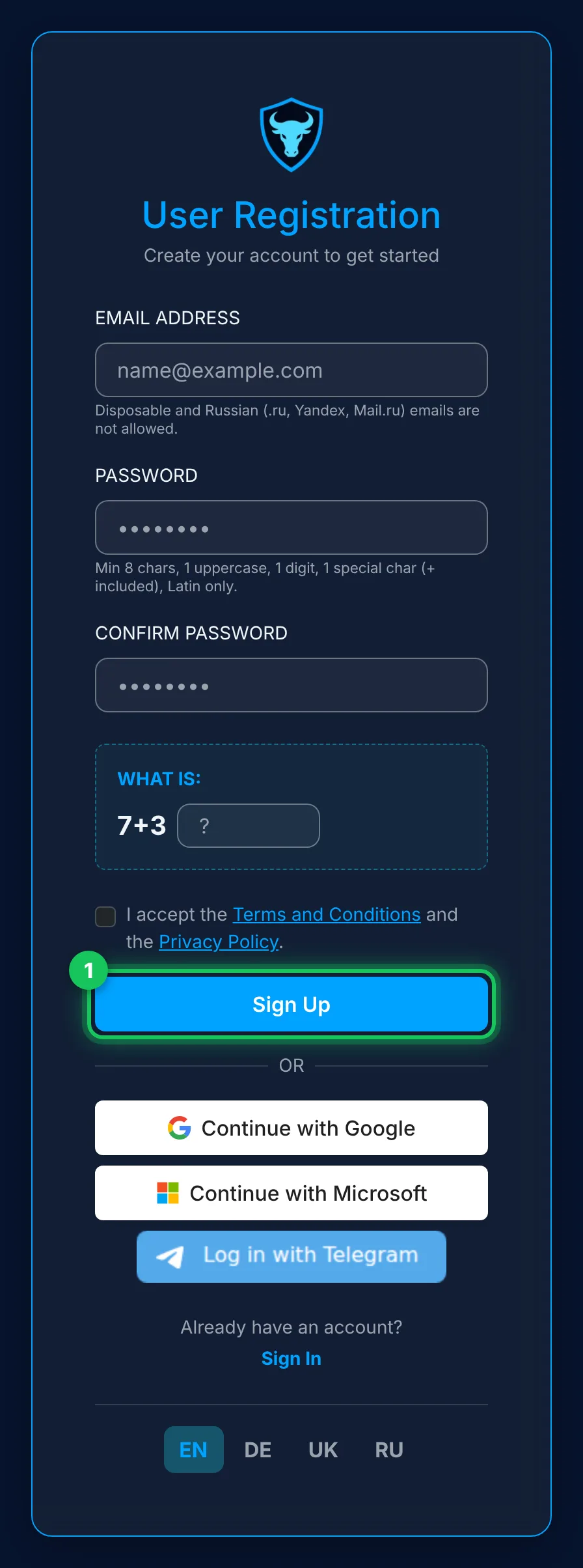
Open my.xibro.de and create an account: enter your email address and a password, solve the small maths problem, accept the terms and the privacy policy and click “Sign Up”. It is quicker with “Continue with Google”, “Continue with Microsoft” or Telegram. If you sign up by email, confirm your address with the link in our email.
Step 2: open “I have a promo code”
After signing in you land on the “Tariff” page. It says “Plans are not available yet” – that is how it should be: until the official launch, plans can only be activated with a code. Click “I have a promo code”.
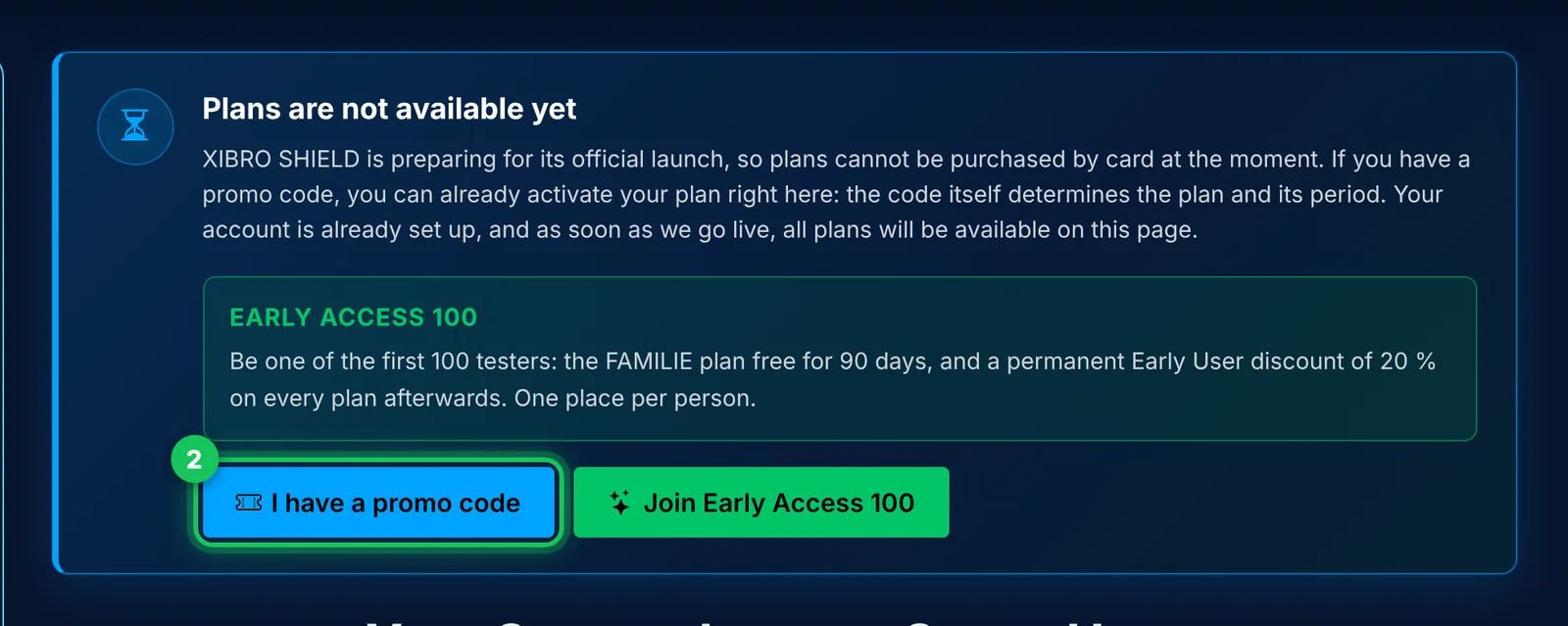
TipNext to it is the “Join Early Access 100” button. It leads to the same result, just without a code. This guide shows the way with the code, as it appears in our invitation email.
Step 3: enter and redeem SHIELD100
- Enter SHIELD100 in the “Promo code” field. Below it, “Promo code accepted: FAMILIE, 90 days” appears.
- Tick the box for the Early Access 100 terms. You can open the full text via “Read the Early Access 100 terms”.
- Tick the second box for the terms (AGB), the cancellation policy and the privacy policy.
- Click “Use code”.
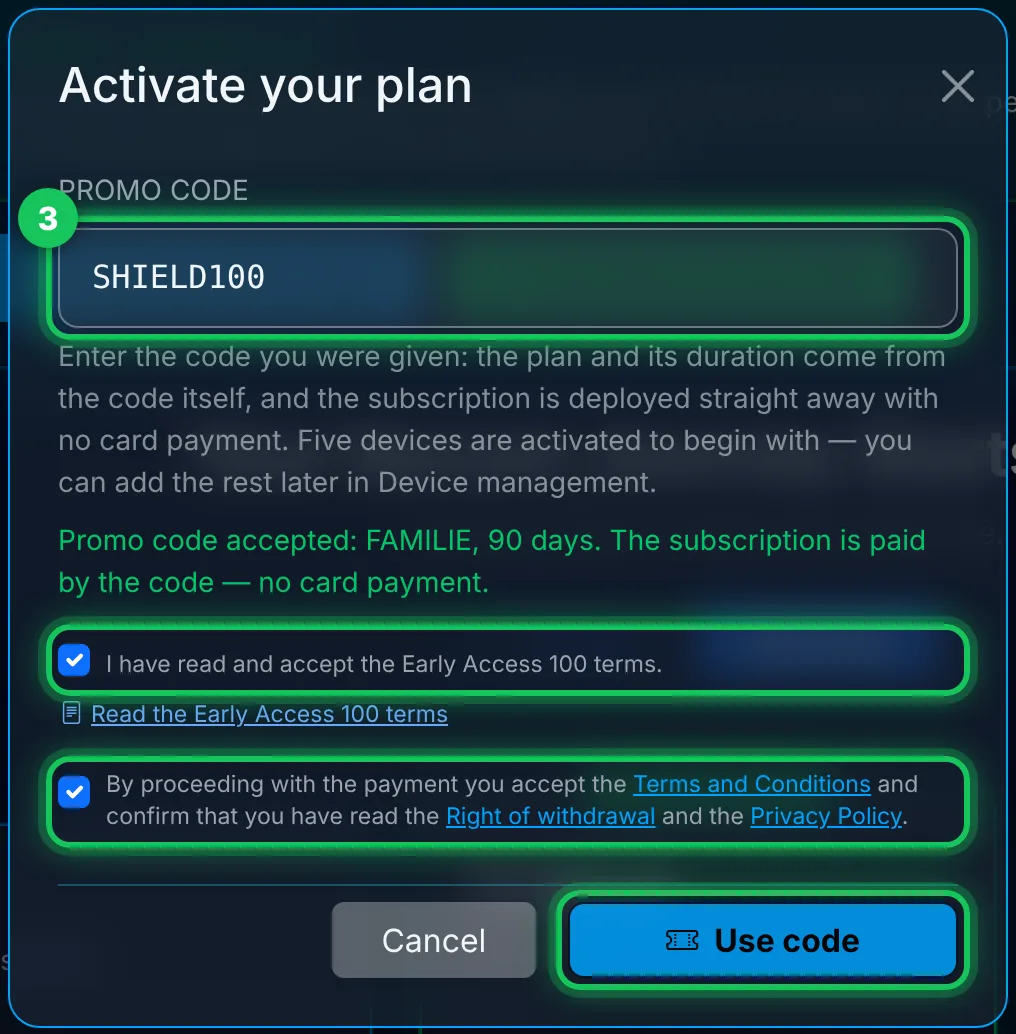
ImportantThe second tick box begins with “By proceeding with the payment …” because the same window is also used for paid plans. With SHIELD100 you don’t pay anything and don’t enter a card.
Step 4: the plan is active
A few seconds later FAMILIE is active. The “Tariff” page now says “Tariff is active” and shows the date on which your 90 days end. The “30 days” next to FAMILIE are the plan’s billing period, not your trial period. After the 90 days your access ends automatically and nothing is charged.

Step 5: install the WireGuard app
XIBRO SHIELD connects your devices via the official, free WireGuard app. In your account, under “Downloads”, you will find the links for iPhone, iPad, Mac, Android, Windows and Linux. Install the app on the device you want to protect.
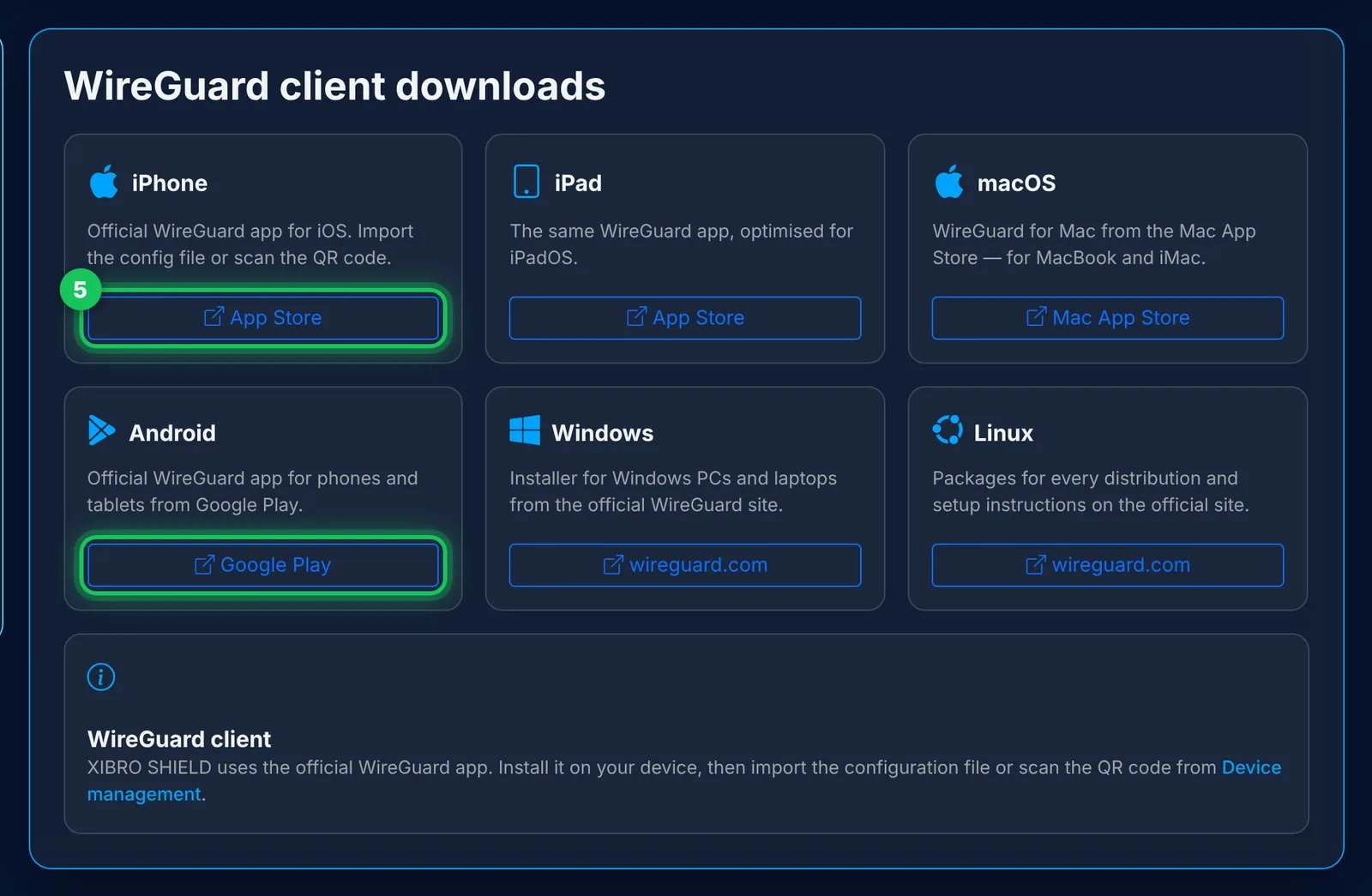
Step 6: connect a device
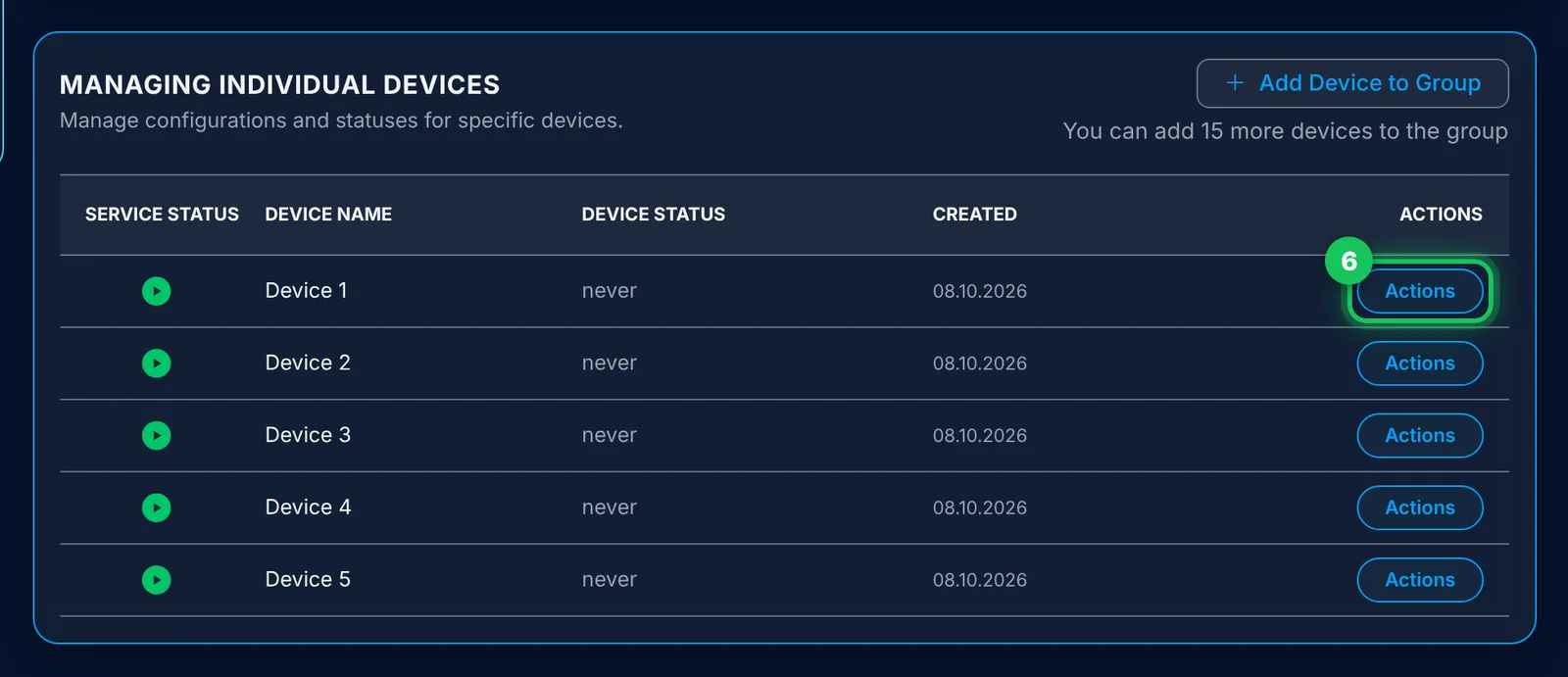
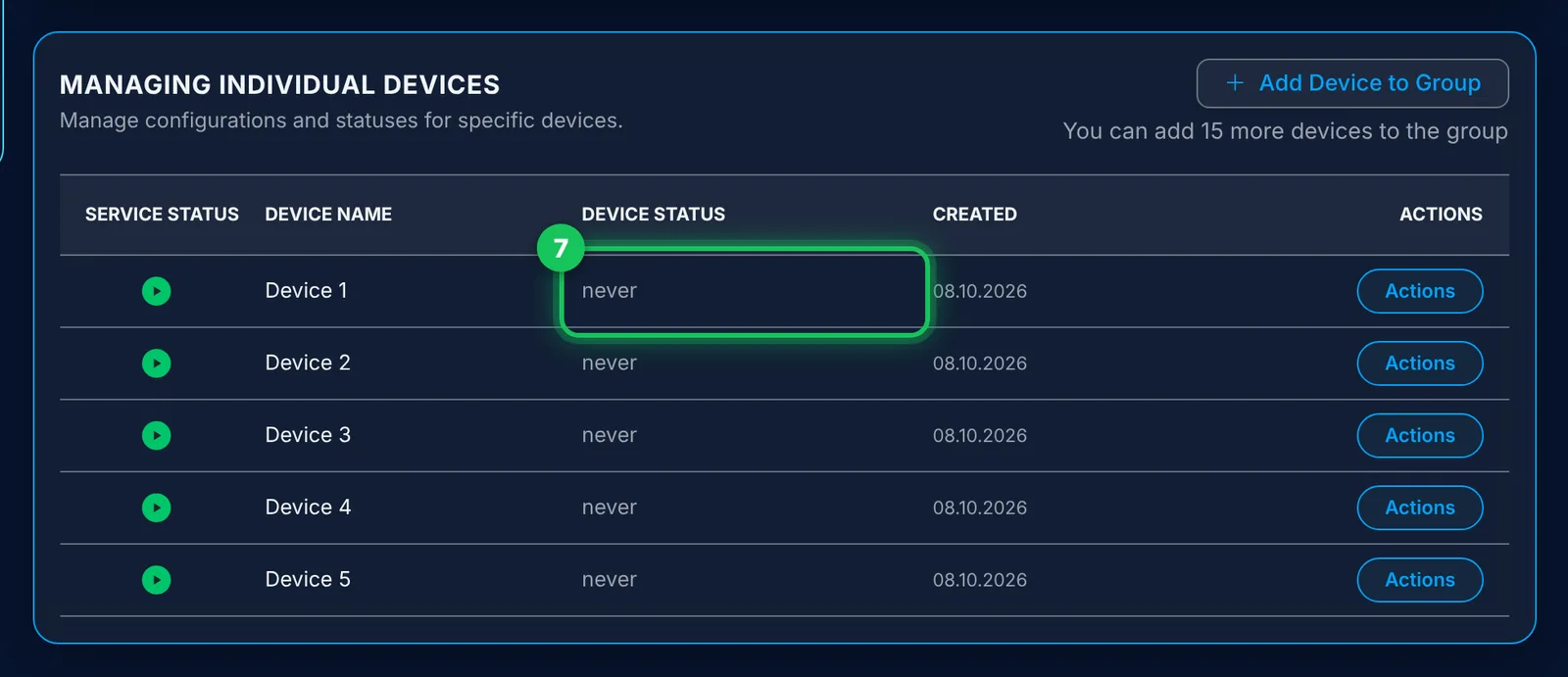
Open “Device management”. Five devices have already been created; you can add more, up to 20 in total, via “Add Device to Group”. Click “Actions” for a device.
In the “Device Actions” window you have two options:
- Phone or tablet: choose “Show QR code”, ideally on your computer. Then tap “Add a tunnel” in the WireGuard app on your phone and scan the code.
- Computer: choose “Download Config” and import the file into the WireGuard app.
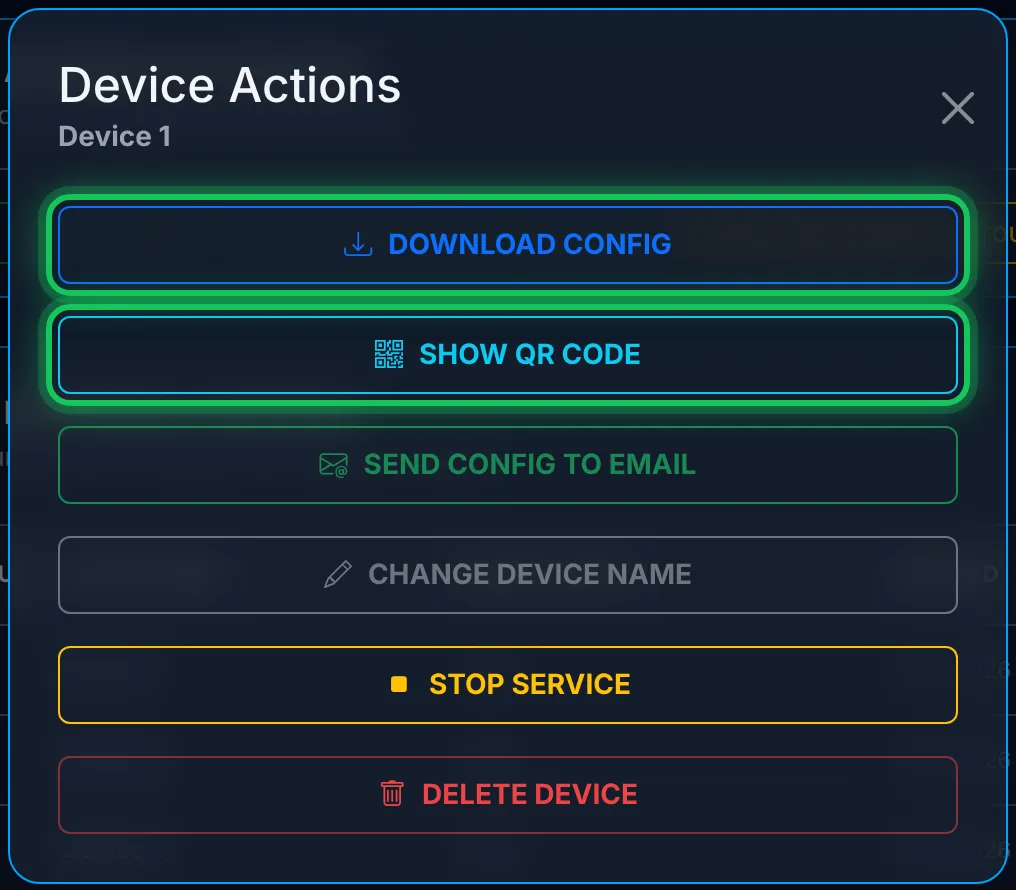
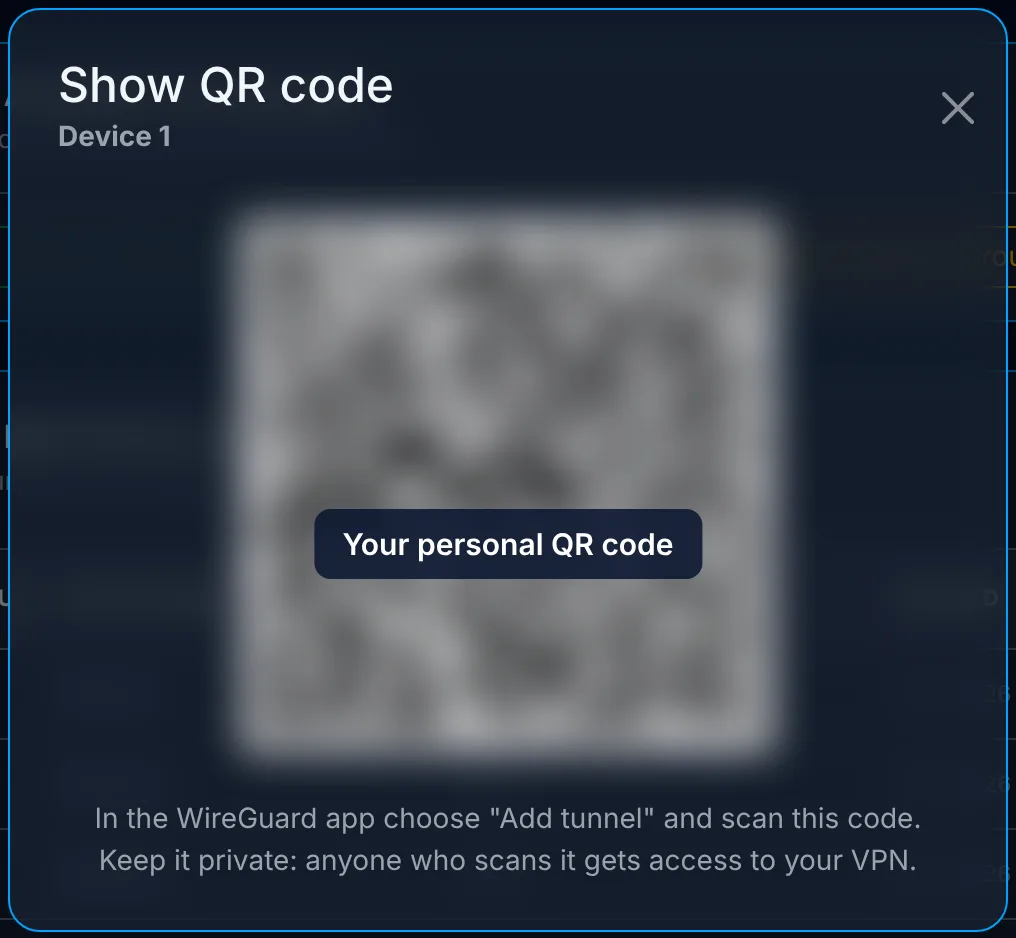
WarningThe QR code and the configuration file are like a key. Anyone who has them can use your connection – don’t share them with anyone.
Finally, switch on the tunnel in the WireGuard app.
Step 7: check the connection
Back in “Device management”: before the first connection, the “Device Status” column says “never”. As soon as your device is connected, the time of the last connection appears there. This also matters for Early Access 100: if no device connects within 14 days, your place goes back into the programme and the account is deleted.
Bonus: protect your whole home network
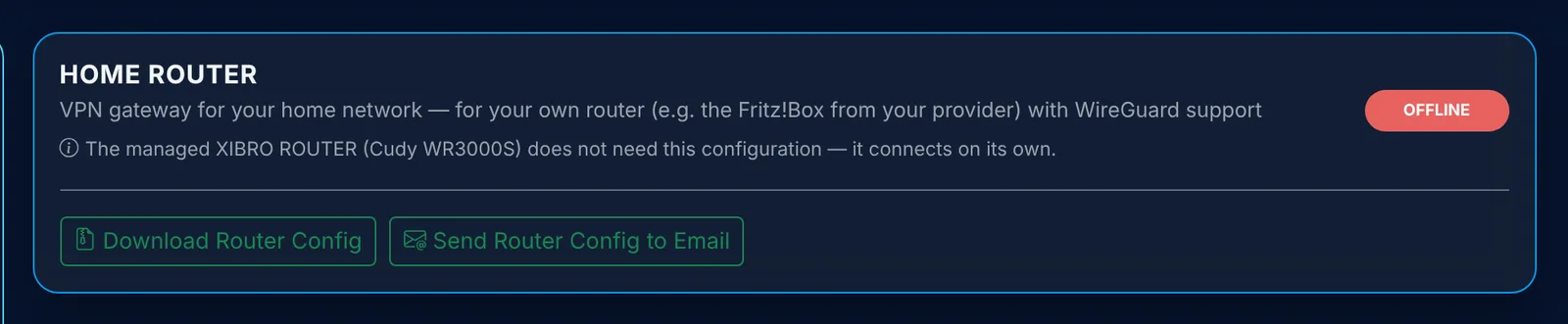
In FAMILIE you can also connect a compatible router with WireGuard, for example a FRITZ!Box. Then the protection applies to all devices in your home network, including the smart TV and console. All devices behind the router share the same filter rules, and they don’t count towards your 20 devices. You will find the configuration in “Device management” under “HOME ROUTER”.
Frequently asked questions
The code is not accepted. What should I do?
Check the spelling: SHIELD100, without spaces. The code is valid once per person and only while places are still available, at the latest until 31 January 2027. If that doesn’t help, write to us in your account under “Support” → “Tickets”.
Do I have to enter a credit card?
No. Nothing is paid with SHIELD100, and nothing renews automatically after 90 days.
Can I try XIBRO SHIELD without an account first?
Yes, for 7 days on one device, without an account and without payment details. Here is how: Free trial – step by step.
How many devices can I connect?
Up to 20 devices with their own connection, plus a router for the home network. Five devices are created straight away; you add the rest in Device management.
Device management still says “never”. Why is that?
Check whether the tunnel is switched on in the WireGuard app and whether you imported the configuration of the right device. Each configuration belongs to exactly one device.
Conclusion
Create an account, redeem SHIELD100, install the app, connect a device – that is all it takes. If something doesn’t work or you notice something, write to us in your account under “Support” → “Tickets”. That is exactly what Early Access 100 is for.