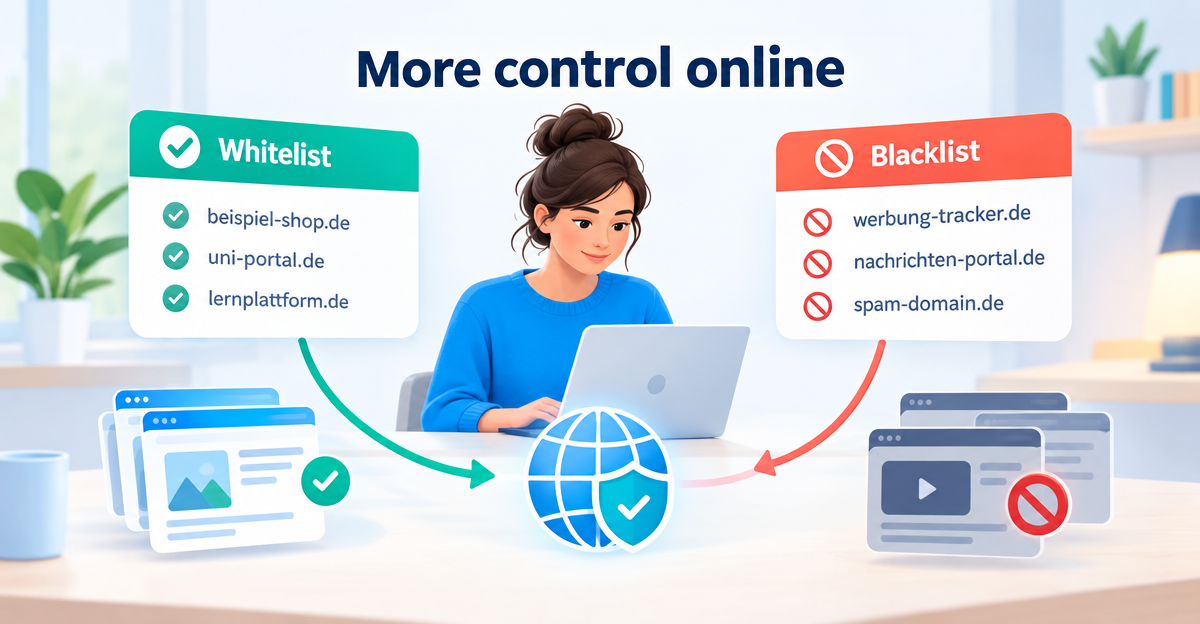
To set up a DNS whitelist and blacklist, you add domains to two lists. The whitelist allows a site despite the filter, the blacklist blocks a site in addition. With SOLO, each list holds 15 of your own domains. That is enough for the most important exceptions and extra wishes, without having to rebuild the basic protection.
What is the difference between a whitelist and a blacklist?
Every website has an address, the domain, for example example-shop.com. Before a page loads, your device asks DNS for the way there. DNS stands for Domain Name System and works like a phone book for the internet. At that moment a DNS filter checks whether the domain is on a block list. If it is, your device gets no answer, and the page or the tracker does not load.
The standard lists are well maintained for many cases. Even so, not every rule suits everyone’s everyday life. This is where your own lists come in:
- Whitelist: this is where you put what you explicitly want to allow. It is your exception when a domain is blocked by a filter list but you need it.
- Blacklist: this is where you put what you want to block in addition. It applies on top of the active filter lists.
How the filter works in the background is explained in more detail in the article DNS filtering explained simply.
When is an exception worthwhile, and when a block?
The decision is usually simple. Ask yourself: am I missing something that no longer works, or is something bothering me that still gets through?
| Situation | Right list | Neutral example |
|---|---|---|
| University portal or shop does not load properly | Whitelist | The payment step of an online shop stays empty |
| A site constantly distracts you | Blacklist | A news portal you no longer want to open |
| A service only works with a helper domain | Whitelist | A learning portal loads videos from an additional domain |
| A particular domain annoys you | Blacklist | An ad domain the filter does not know yet |
As a rule of thumb: the whitelist is for problems, the blacklist for wishes. And because you only have 15 slots per list, it pays to use them deliberately.
How to set up a DNS whitelist and blacklist
Setting it up takes a few minutes. The labels in your account may differ slightly depending on the view, but the steps stay the same.
- Narrow down the problem: note which site or app does not work, or which site you want to block.
- Find the domain: for a website it is in the address bar, for example example-shop.com. For an app it is more difficult, because apps often use several domains.
- Open your account: sign in and look for the DNS filter section. There you will find the fields for the whitelist and blacklist.
- Add the domain: as a rule, only write the domain name, without https:// and without a path after it. Then choose the right list and save.
- Test: reload the page. If it does not respond yet, close the tab and open it again after a short while.
- Tidy up: remove entries you no longer need. That leaves room for new rules.
TipNever add the same domain to both lists. It only makes your set of rules confusing. Choose one direction and test the result.
What if a page still does not load after allowing it?
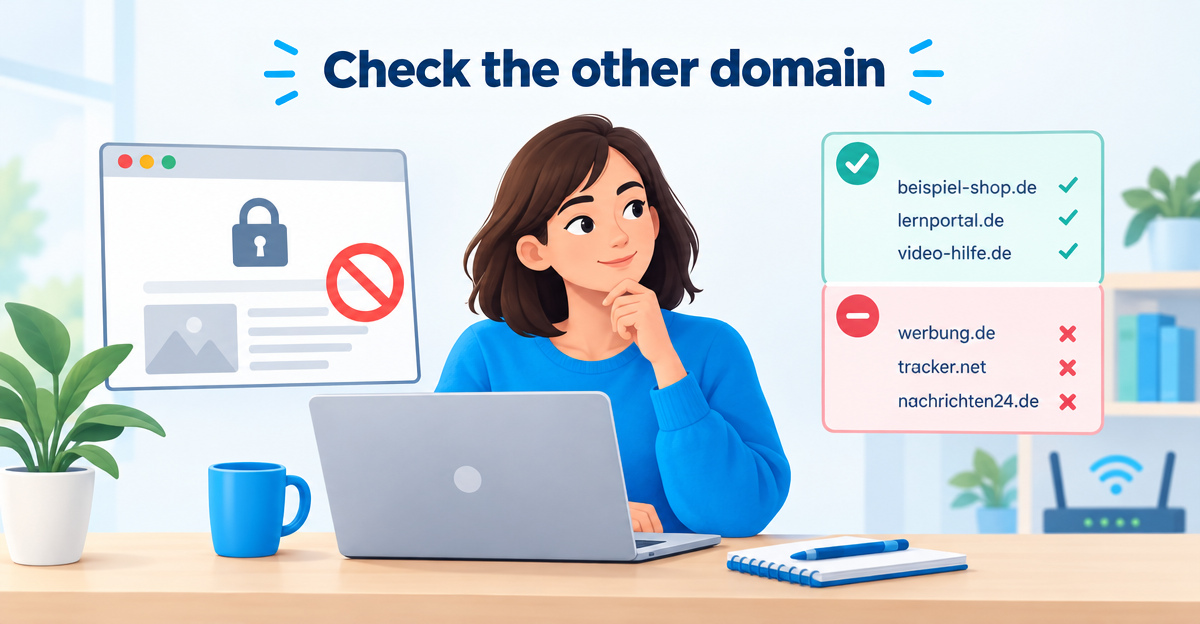
Modern websites load content from many domains at once: images, fonts, videos, payment functions. If you only allow the main domain, a helper domain may still be blocked. Then the page still misbehaves. In that case, check whether a second domain is involved. The browser’s message or the statistics in your account can also help. There you can see which domains were filtered.
If ad and tracking domains in apps are the cause, take a look at the article Blocking trackers in apps. It explains why apps contact such domains in the first place.
What alternatives are there without a dedicated service?
You don’t have to use a service for everything. You can block individual sites in the browser with an extension if you only need this on one device. If you like tinkering, you can run your own DNS filter such as Pi-hole at home. It also has lists for allowing and blocking. But that takes time for setup and maintenance. What options your router offers depends on the model. Check the manufacturer’s help pages for this.
The advantage of a service: the rules are in one place, and you don’t have to maintain them on each device separately. Whether that is what you need or whether a browser blocker is enough depends on how many devices you use.
Where the limits of a DNS filter lie
The limitsA DNS filter only works with domains. It cannot block a single subpage and cannot remove content within an allowed domain.

- Ads in services: a DNS filter cannot remove ads inside YouTube or in the Instagram feed. They come from the same servers as the content itself.
- Messages: text messages, WhatsApp and emails are not checked. When you open a link, known phishing can be blocked, but the message itself still arrives.
- Push notifications: you switch off notifications that you once allowed in the browser in the settings of the browser or phone.
- Encrypted DNS: if a device uses its own encrypted DNS (DNS over HTTPS), it can bypass the filter. More on this in the article Blocking DNS over HTTPS.
ImportantA whitelist is not a seal of approval. If you allow a domain you don’t know, an unsafe site can get through too. Only allow sites you trust.
What does XIBRO SHIELD do with SOLO in this situation?
XIBRO SHIELD is not a classic VPN. Only the DNS queries go through the tunnel; the rest of your traffic goes directly. Your IP address and your country stay the same. DNS filtering runs on our servers in Germany. The basic protection blocks ads, trackers and known phishing sites. DNS logs are kept without your IP address and are deleted automatically after 91 days.
With SOLO you protect up to five devices, for example a smartphone, a laptop and a tablet. On top of that come your own domain rules: the whitelist and blacklist each hold 15 domains. SOLO deliberately has no profiles, no router protection, no schedules and no youth protection. So the rules cannot be assigned to individual people. If you need that, you will find it in FAMILIE and ZUHAUSE. There it is 30 domains each in FAMILIE and an unlimited number in ZUHAUSE, each assignable per profile. More about the single-person option in the article DNS protection for one person.
NoteXIBRO SHIELD is currently still in the Early Access phase – plans can currently only be activated with an invitation code. Regular sales will start later.
Frequently asked questions
How many domains fit into the whitelist and blacklist?
With SOLO, each of the two lists holds 15 domains. That is 30 entries in total, but not one shared list. If a list is full, remove an old entry before you add a new one.
Can I set rules for individual devices or people?
Not in SOLO, because there are no profiles. The rules are meant for your subscription, not for individual people. Rules per profile are available in FAMILIE and ZUHAUSE.
How can I allow a domain that the filter blocks?
Add the domain to the whitelist and save. Then reload the page. If it still misbehaves, it may need several domains. Also check whether the connection to XIBRO SHIELD is active on your device.
Can I use it to block domains I personally don’t like?
Yes, that is what the blacklist is for. It blocks domains in addition to the active filter lists. Bear in mind: if a device uses its own encrypted DNS, it can bypass the filter. The protection is therefore helpful, but never absolute.
Conclusion
Two small lists give you a lot of control: the whitelist resolves exceptions, the blacklist sets your own limits. Start with the sites that really bother you or are blocked, and keep the list short. If you want to see what this looks like in practice, take a look at SOLO at a glance or go straight to xibro.de.