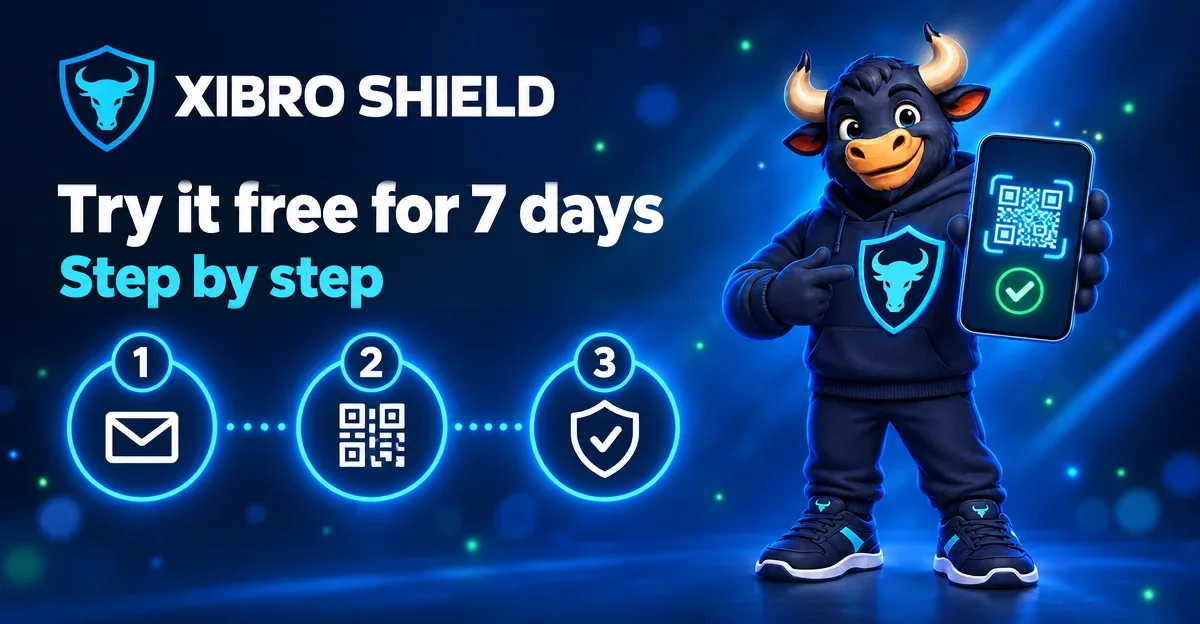
With the free trial you try XIBRO SHIELD for 7 days on one device – without a customer account, without payment details and without cancelling, because the trial ends by itself. All you need is an email address, the free WireGuard app and about five minutes. Here is every step with a screenshot.
What the trial includes – and what it doesn’t
- 7 days, 1 device: phone, tablet or computer – iPhone/iPad, Android, Windows, Mac or Linux.
- All protection features are permanently switched on: protection against known ad, tracking, phishing and malware domains, advanced filtering, youth protection (adult content and gambling sites are always blocked in the trial) and “No DNS bypass”.
- Not included: your own exceptions (whitelist and blacklist), profiles, schedules and router use. The whitelist and blacklist are available in all plans; profiles, schedules and router use in FAMILIE and ZUHAUSE.
- Free and with no catch: the trial ends automatically after 7 days and does not turn into a paid plan.
- One trial per person. The number of trial places is limited. If they are all taken at the moment, you go on the waiting list.
Good to knowOnly DNS queries go through the encrypted WireGuard connection. Your IP address and your location stay as they are. So XIBRO SHIELD is not a VPN for hiding your IP, but a filter that stops ads, trackers and dangerous sites as soon as the address is looked up.
Step 1: fill in the form
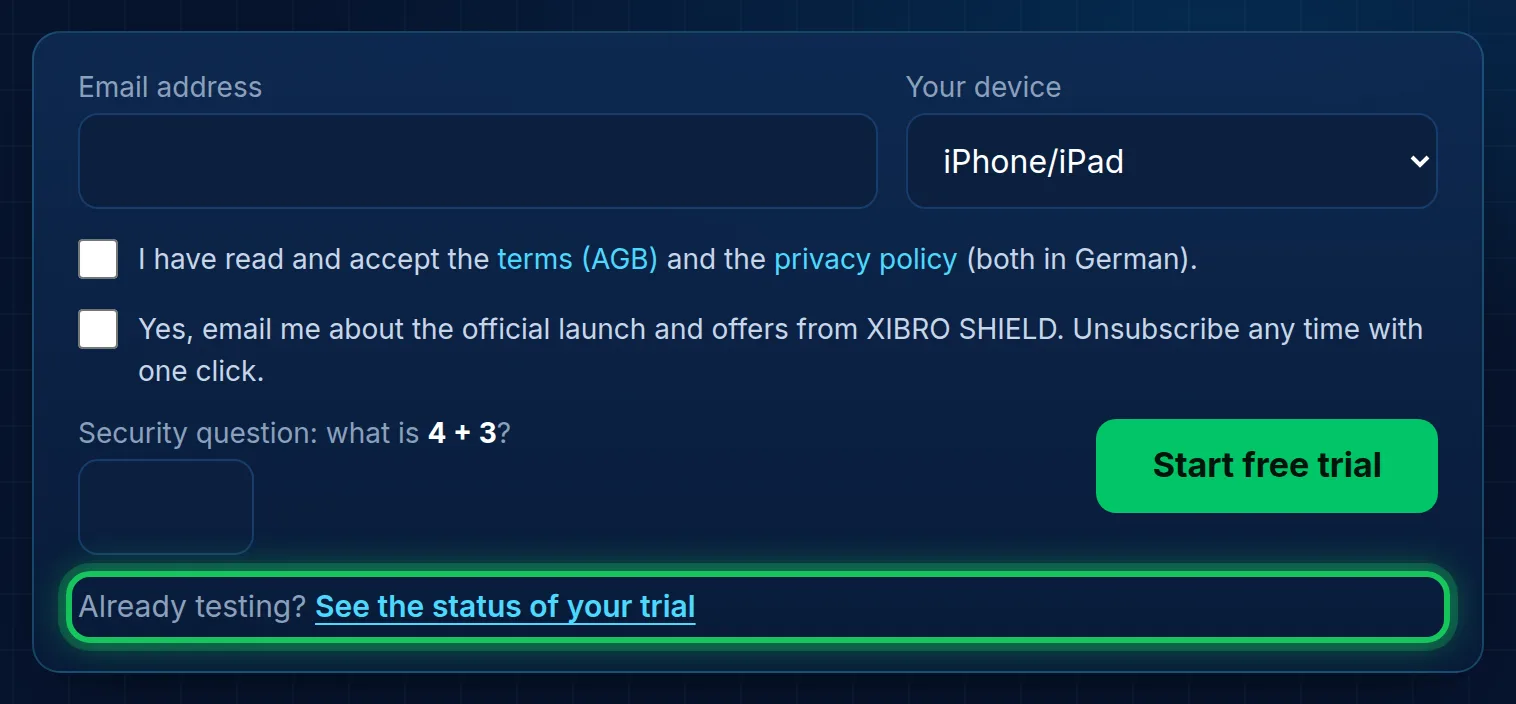
Open xibro.de/en/free-trial and fill in the form:
- Enter your email address.
- Choose your device – the instructions in the email are based on it.
- Tick the box for the terms and the privacy policy.
- Solve the small maths problem.
- Click “Start free trial”.
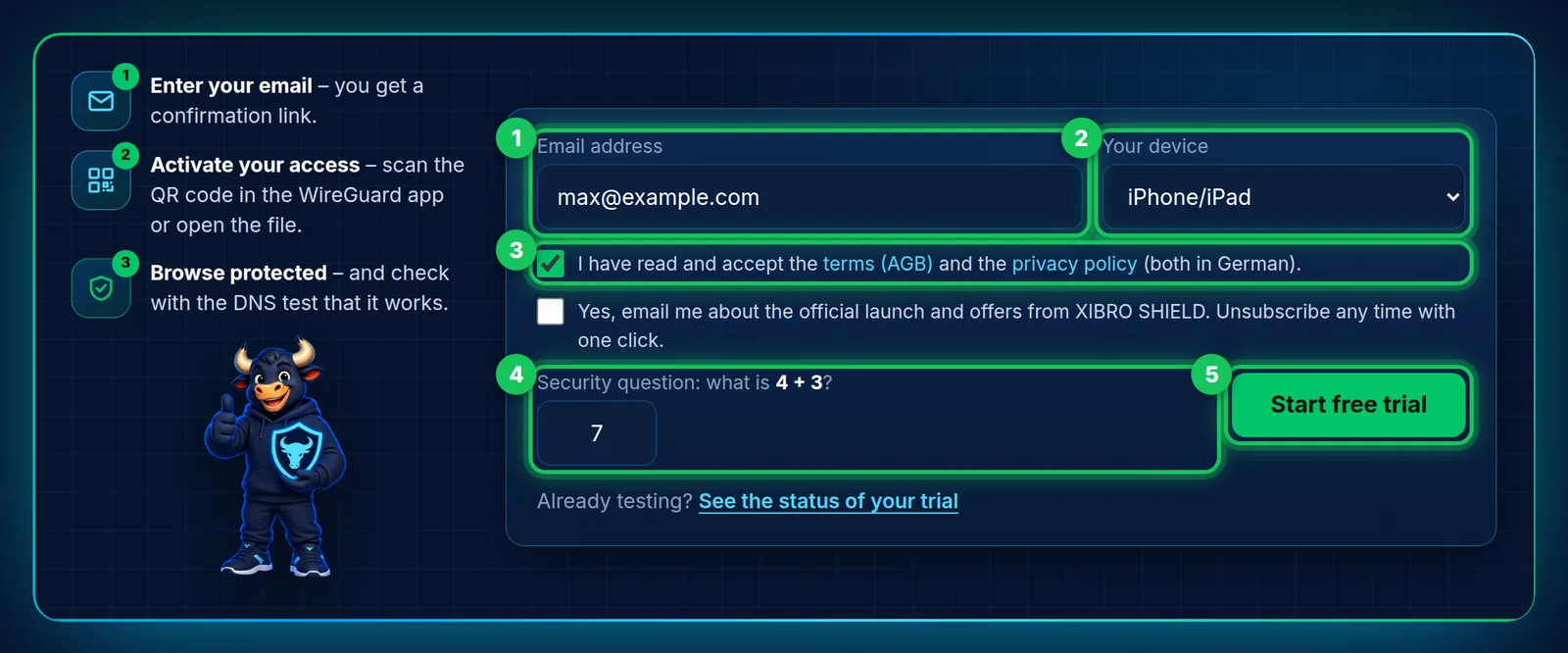
The second tick box is optional: with it you receive news about the official launch and offers from XIBRO SHIELD. You don’t need it for the trial, and you can unsubscribe at any time via the link in each of these emails.
Step 2: confirm your email
Right after clicking you see “Almost done!”. We have sent you an email.

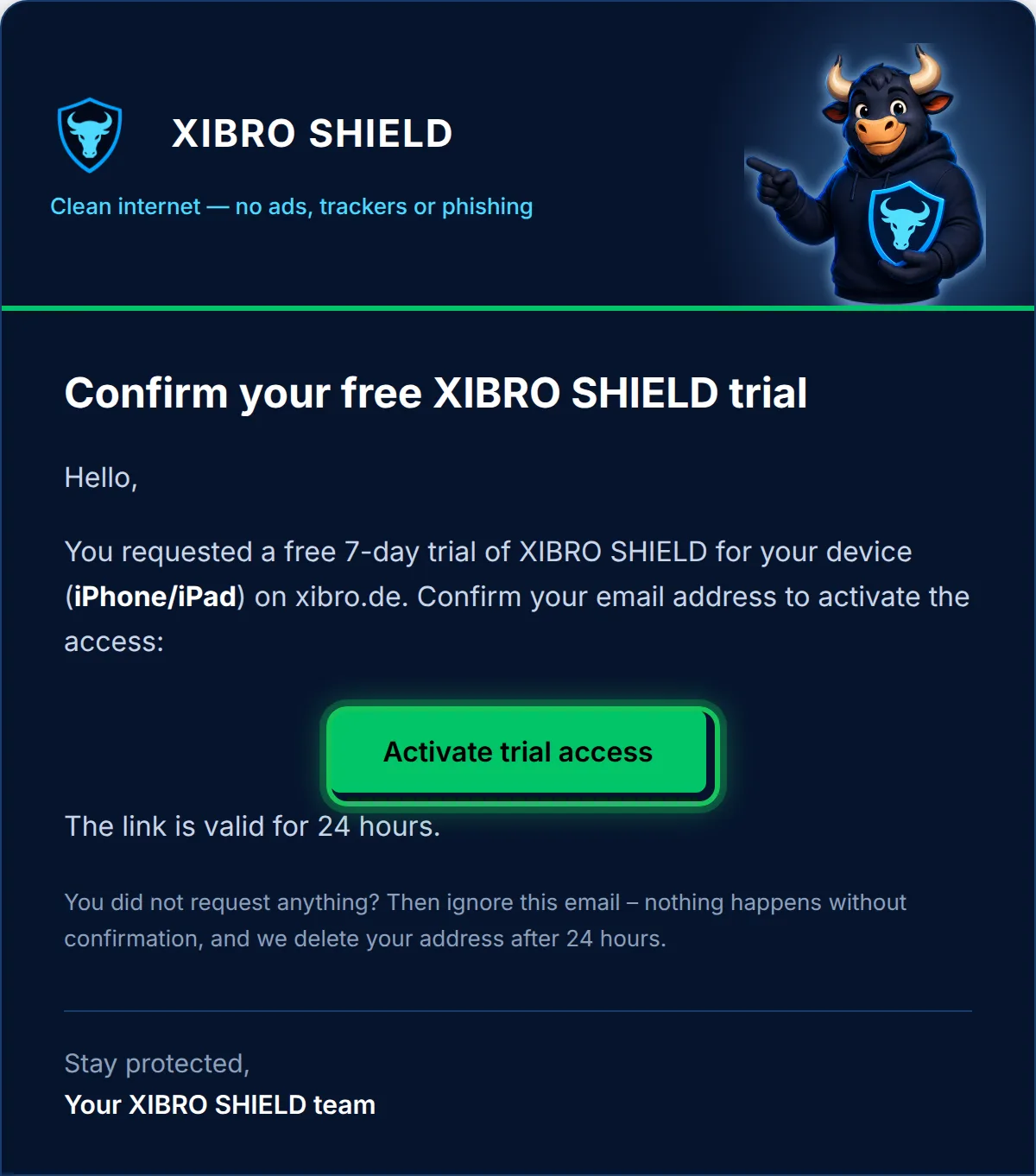
Open the email “Confirm your free XIBRO SHIELD trial” and click “Activate trial access”. The link is valid for 24 hours. No email? Check your spam folder.
TipIt is best to open the link on your computer. Then you can simply scan the QR code with your phone in the next step. If you open it directly on your phone, you download the file instead – that works too.
Step 3: activate access
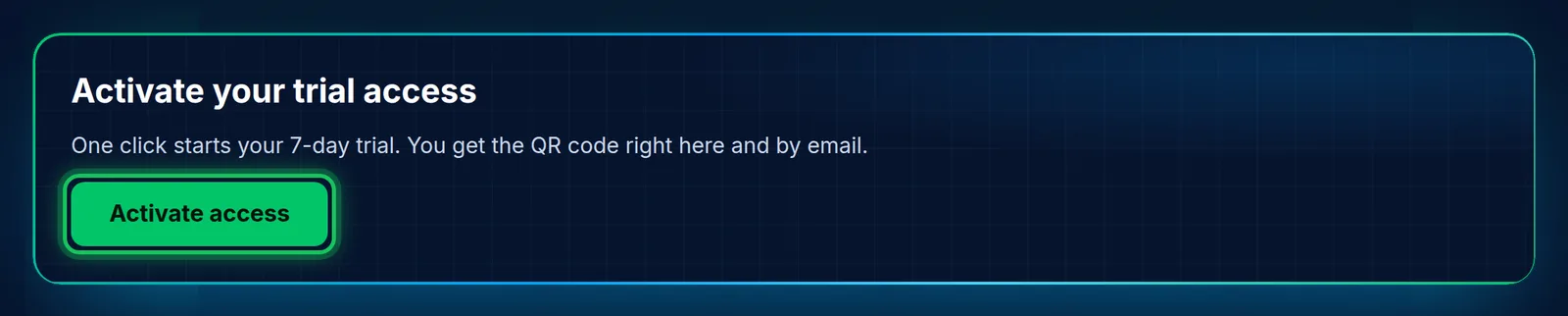
The link takes you back to our site. Click “Activate access” – this starts your 7 days.
NoteIf all trial places are taken at the moment, you are on the waiting list after confirming. As soon as a place becomes free, we activate your access automatically and send you the QR code by email. The registration stays valid for 14 days.
Step 4: get the QR code or the file
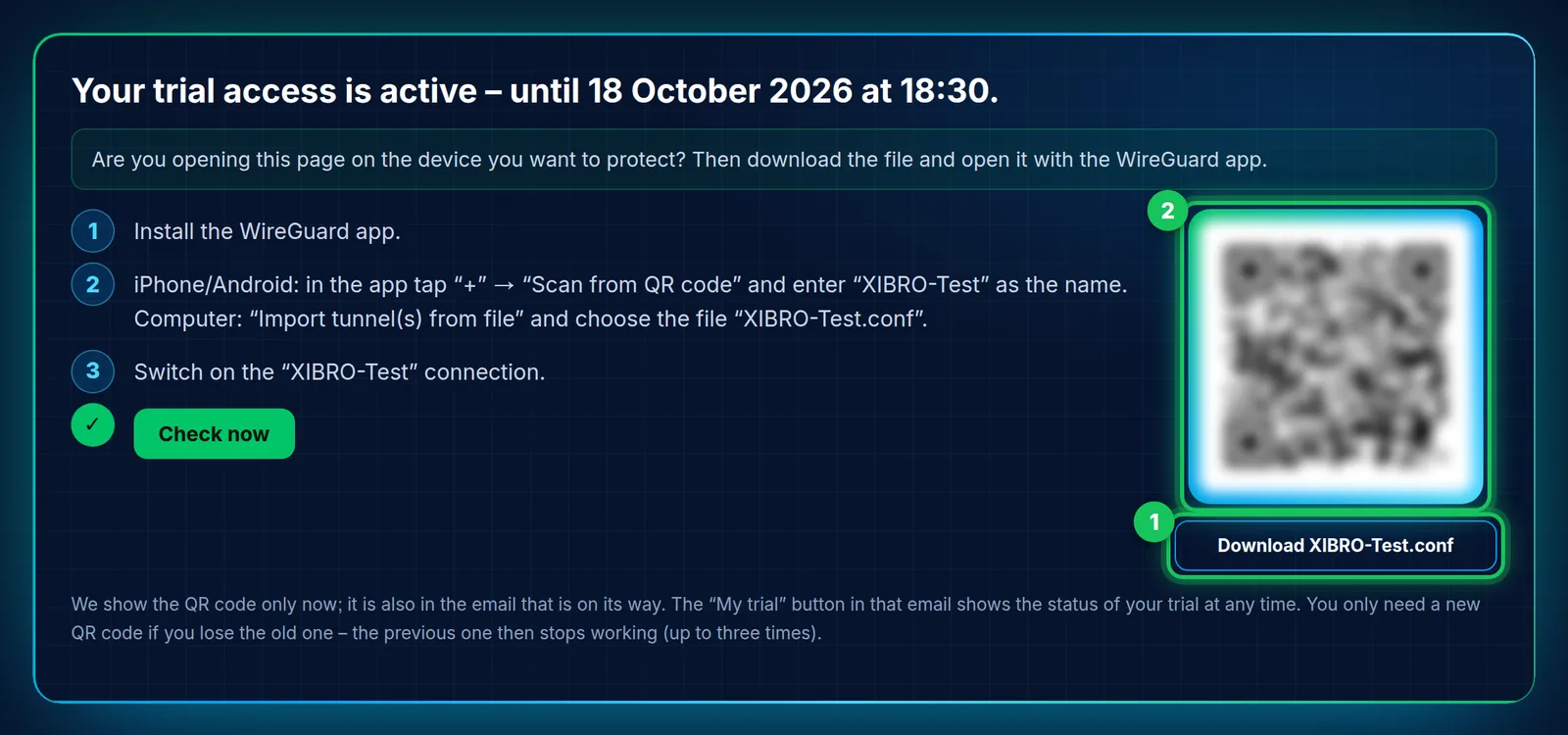
Your trial access is now active – the top of the page shows exactly until when. You have two options:
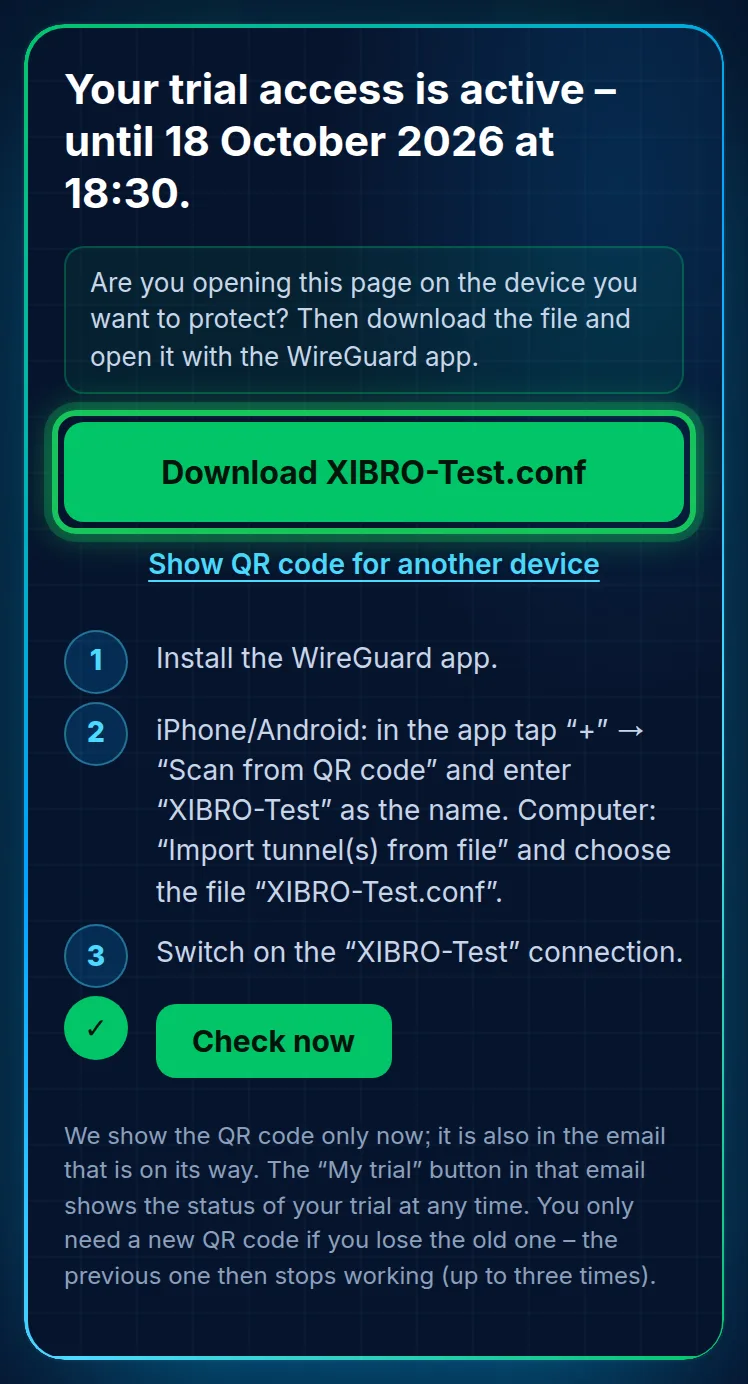
- Download the file “XIBRO-Test.conf” – for the device on which you currently have the page open.
- Scan the QR code – with the WireGuard app on your phone if the page is open on your computer.
On a phone the file comes first, because you can’t scan your own screen. You open the QR code there via “Show QR code for another device”.
The same details also arrive by email: “Your XIBRO SHIELD trial access is active” with the file XIBRO-Test.conf attached, the QR code and short instructions for your device.
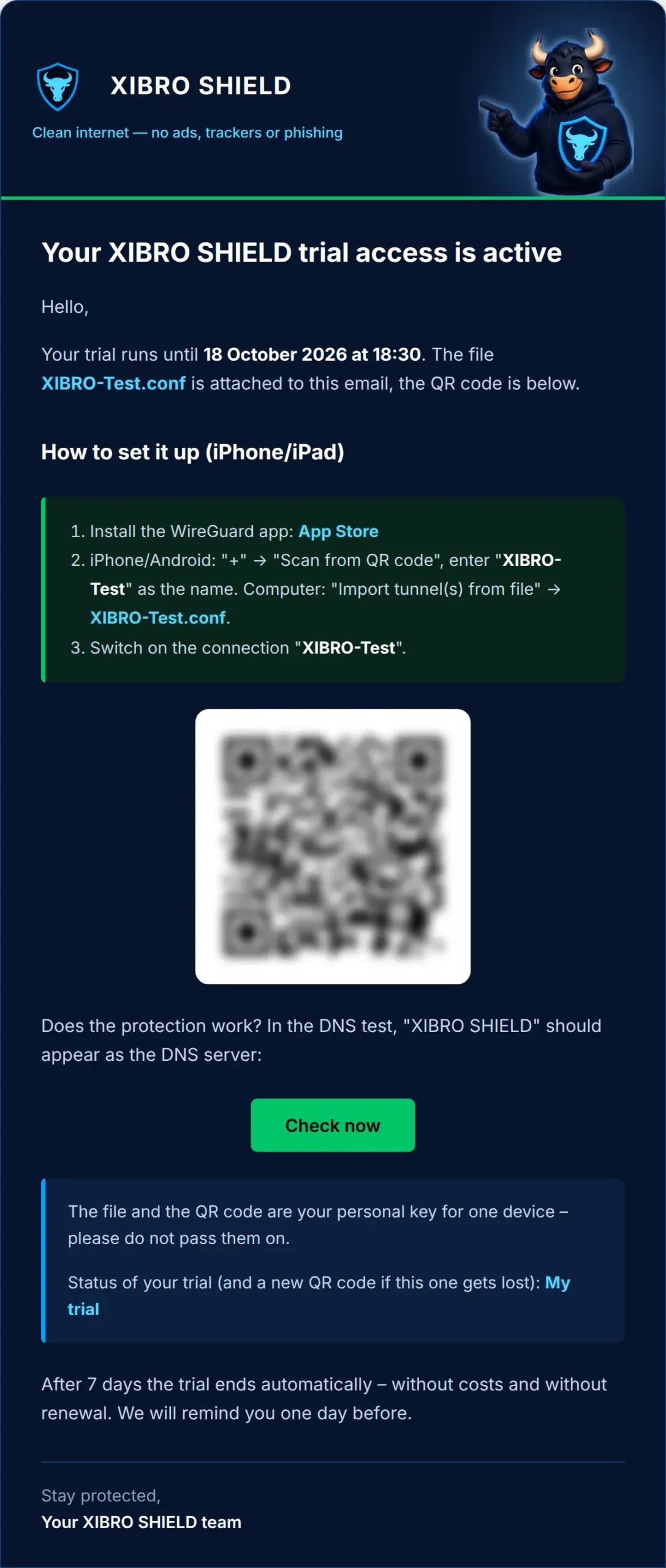
WarningThe QR code and the file are your personal key for one device. Anyone who has them can use your trial access – don’t pass them on.
Step 5: set it up in the WireGuard app
Install the official, free WireGuard app: wireguard.com/install leads to the App Store, Google Play and the versions for Windows, Mac and Linux. Then:
- iPhone or Android: in the app tap “+”, choose “Scan from QR code” and scan the code. The app then asks for a name – enter XIBRO-Test.
- Computer: choose “Import tunnel(s) from file” and open the file XIBRO-Test.conf. The name “XIBRO-Test” is taken over automatically.
- Phone without a second screen: open the downloaded file with the WireGuard app.
Finally, switch on the “XIBRO-Test” connection. On a phone, the system asks the first time whether WireGuard may set up a VPN connection – allow it.
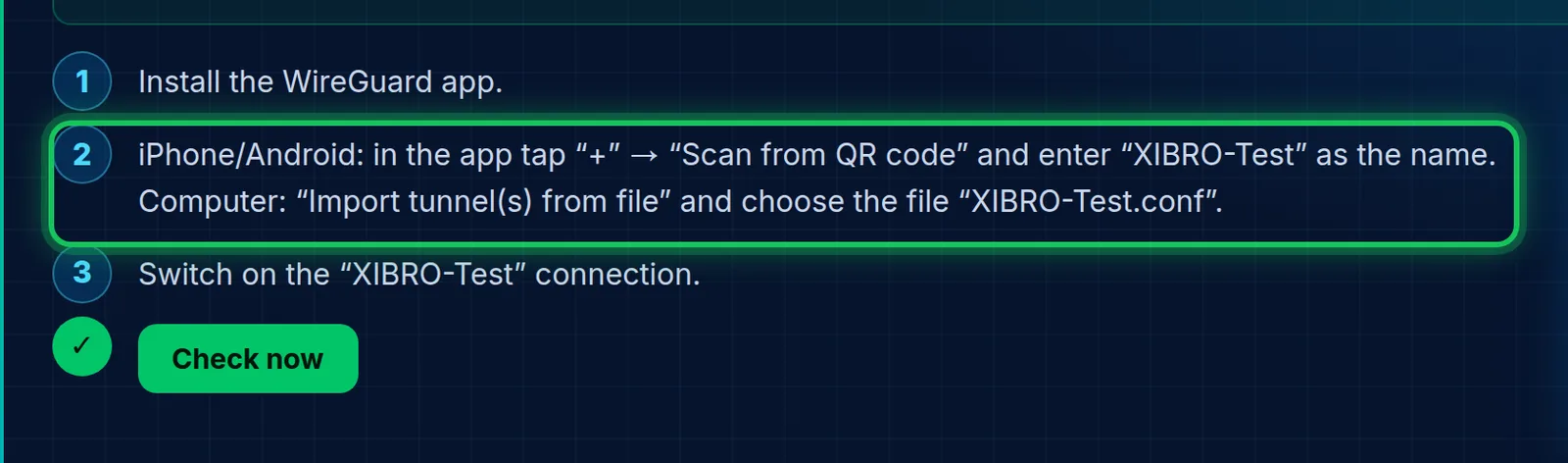
Why does the app ask for a name with the QR code? A QR code only contains the connection details, but no name. With the file, the app uses the file name. With “XIBRO-Test” you can easily find the connection again later – including to switch it off after the trial.
Step 6: check that the protection works
Click “Check now” or open the DNS test on the protected device. Under “Who answers your DNS queries?” you will then see XIBRO SHIELD with the addition “trial access”, and the test addresses for ads, trackers and telemetry are blocked.
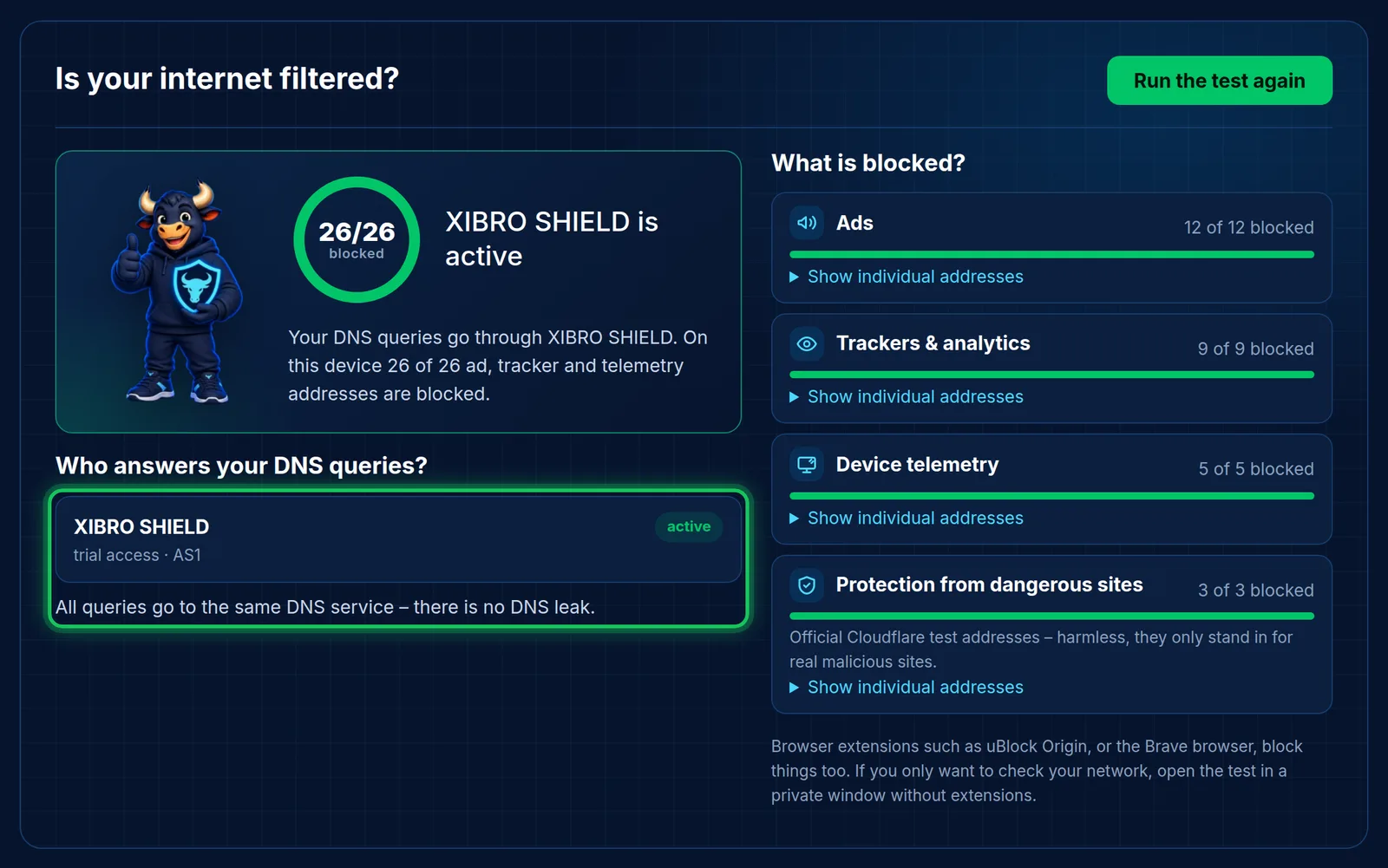
Good to knowSites such as “What is my IP?” still show your normal IP address. That is how it should be, because only the DNS queries go through XIBRO SHIELD. Whether the protection works is shown by the DNS test.
Step 7: see the status of your trial
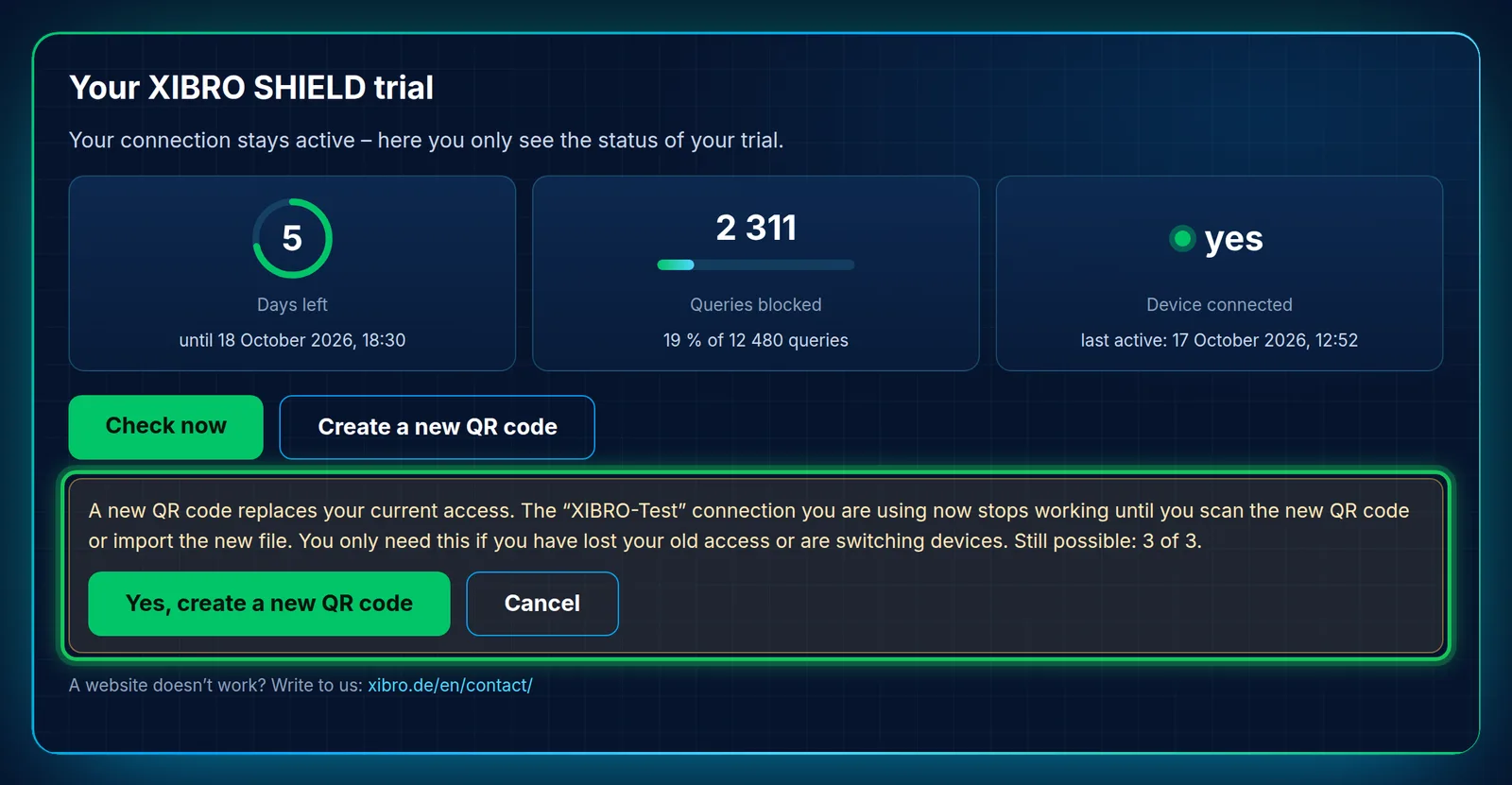
The access email contains the “My trial” link. It shows you at any time:
- how many days are left – with the date and time of the end,
- how many queries XIBRO SHIELD has blocked and what share of all queries that is,
- whether your device is connected and when it was last active.
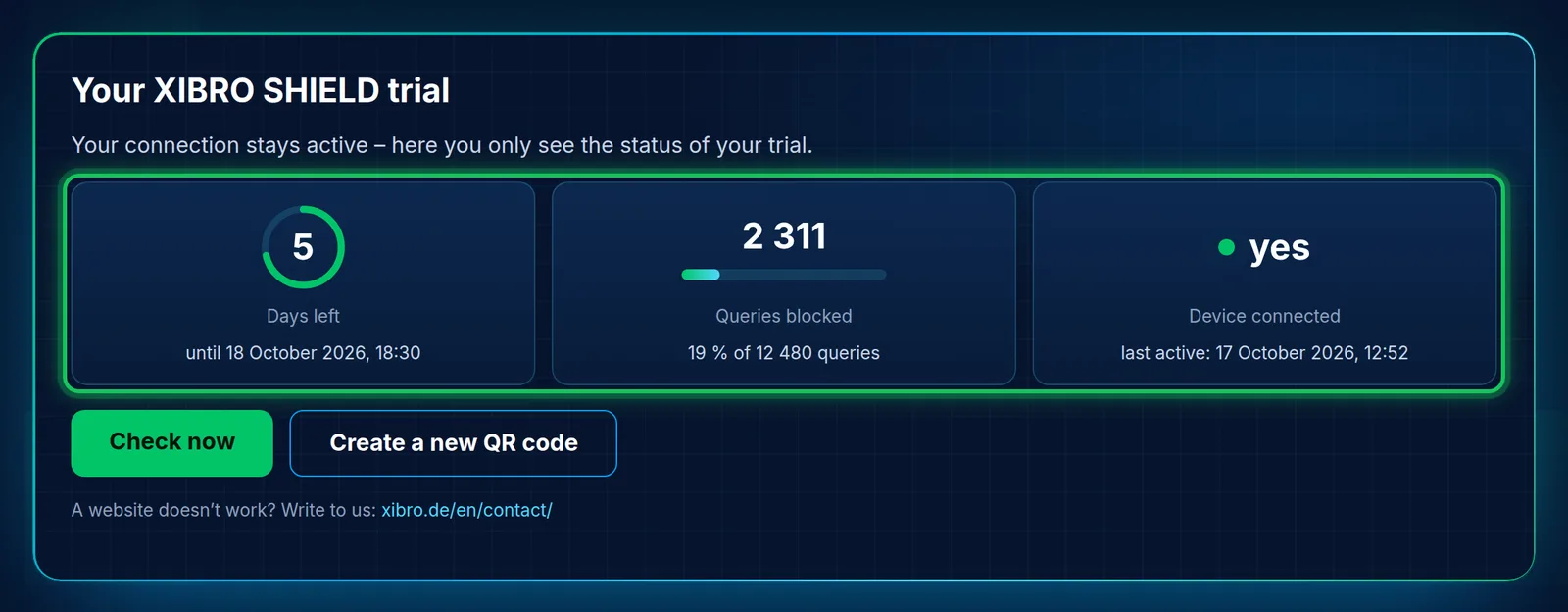
The figures are updated every few minutes. Your connection stays unchanged while you look at them.
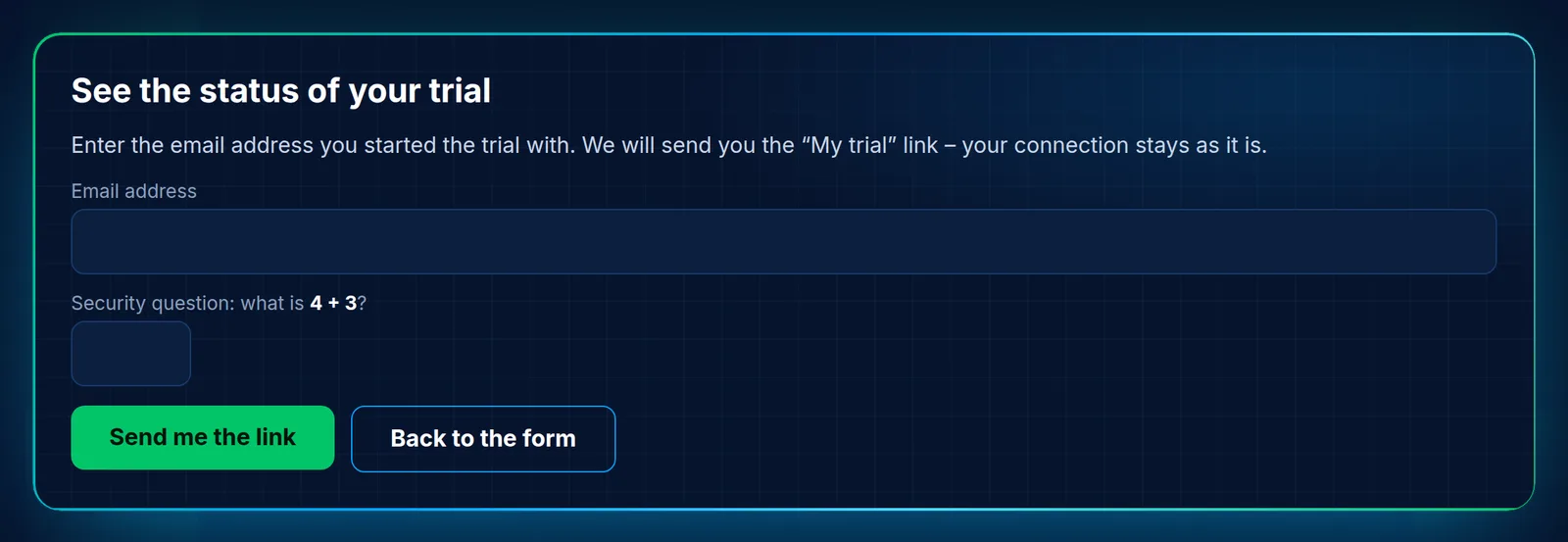
Email gone? On the trial page, click “Already testing? See the status of your trial” below the form.
Enter the email address you started the trial with and solve the maths problem. We send you the “My trial” link again. Older links then stop working – but your connection stays as it is.
A new QR code – only if the old one is lost
On the “My trial” page there is “Create a new QR code”. You only need it if you have lost your old access or are switching devices. A new QR code replaces your current access: the connection you are using now stops working until you scan the new QR code or import the new file. That is why the page asks first. This is possible up to three times.
What happens after 7 days
One day before the end we remind you by email. After that we switch off the access automatically. You don’t have to cancel anything, there are no costs, and nothing renews.
ImportantAfter the end, switch off or delete the “XIBRO-Test” connection in the WireGuard app. As long as it is switched on, your device can’t find any websites.
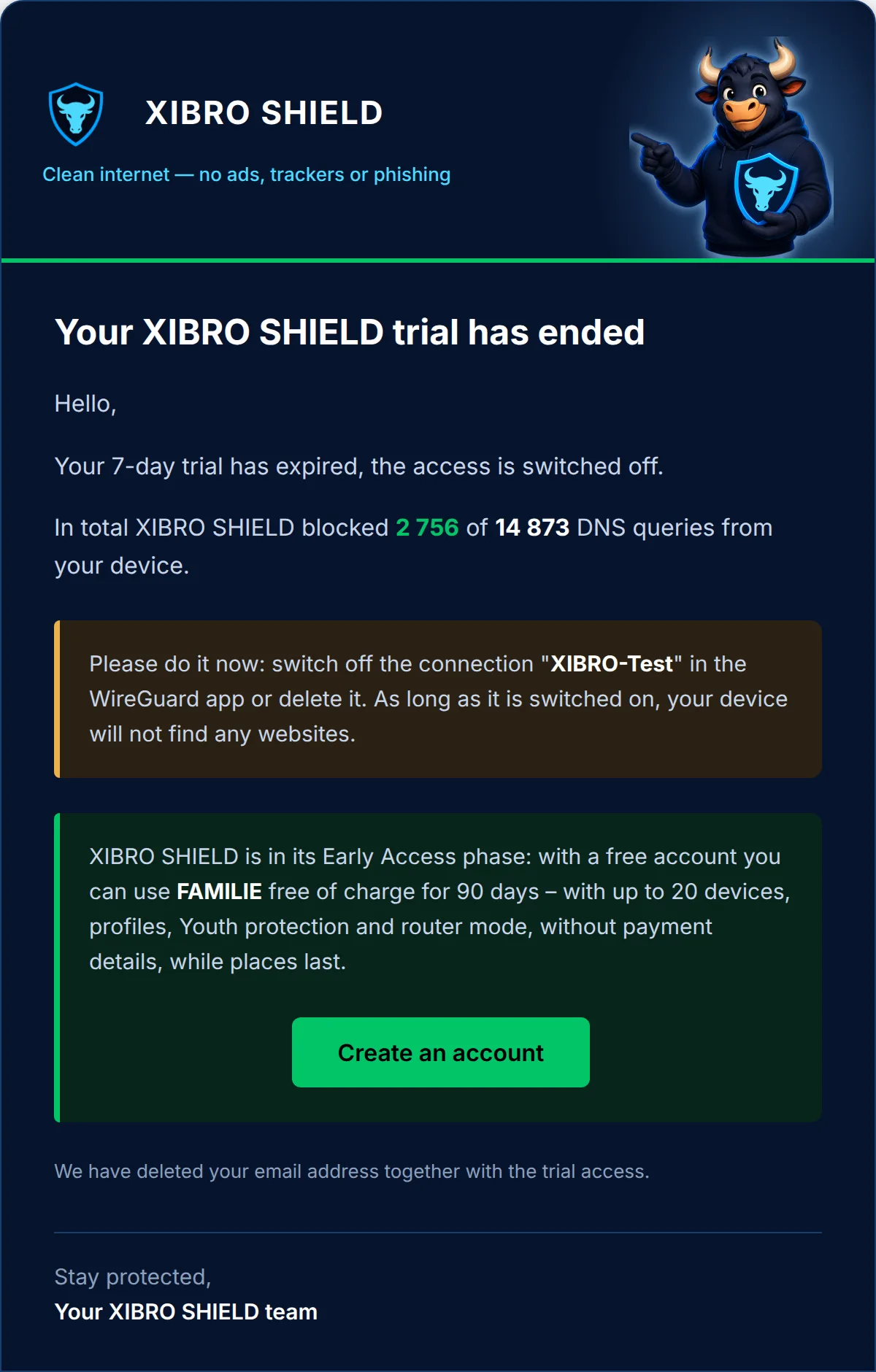
NoteXIBRO SHIELD is currently in the Early Access phase. With a free customer account you can use FAMILIE free for 90 days – with up to 20 devices, profiles, youth protection and router use, without payment details, while places are available. With the account you get your own new configuration. How it works is shown in our guide to SHIELD100.
Privacy in the trial
- Only DNS queries go through the WireGuard connection. The content of the pages you open does not pass through our servers.
- All trial users share one DNS filter on our servers in Germany. We delete the trial’s DNS logs automatically after 10 days.
- We don’t store the private key of your configuration. It is shown to you once and sent by email.
- When the trial ends, we delete your email address. So that nobody uses the trial more than once, for 12 months we keep only a check value (hash) from which the address cannot be recovered.
All details are in the privacy policy (section 10) and in the terms (AGB) (section 7a), both in German.
Frequently asked questions
I didn’t get an email. What should I do?
Check your spam folder. The confirmation link is valid for 24 hours. If it has expired, simply fill in the form again.
Do I need a customer account or a credit card?
No. An email address is enough for the trial. If a customer account already exists for your address, you don’t need the trial: you will then receive an email with the way into your account.
Can I use the trial more than once?
No, each person can use the trial once.
Can I test several devices?
The trial applies to one device. Several devices are available in all plans – up to 5 in SOLO, 20 in FAMILIE and 30 in ZUHAUSE. Profiles and protection for the whole home network via the router are available in FAMILIE and ZUHAUSE.
Does the trial cost anything or renew?
No. The trial is free, ends by itself after 7 days and does not turn into a paid plan.
After the trial my device no longer opens any pages.
The “XIBRO-Test” connection is still switched on. Switch it off or delete it in the WireGuard app – after that everything works as before.
Something doesn’t work. Where can I get help?
Write to us via xibro.de/en/contact. Unfortunately, replies to our emails don’t reach us.
Conclusion
Fill in the form, confirm your email, scan the QR code, check in the DNS test – after about five minutes your trial is running. After that you can see for yourself for seven days what XIBRO SHIELD blocks on your device. Start your free trial now.