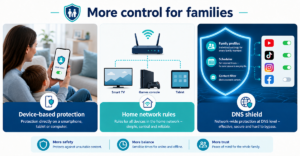
If you want to block YouTube for your children, there is no single switch. On iPhone and iPad you use Screen Time, on Android Family Link, in the home network the router, and on the TV its own settings. Each option only controls what it can reach itself – so it is best to combine two of them.
Ban it completely or block it selectively?
Very few parents want to ban YouTube forever. Everyday life usually looks like this: the eight-year-old shouldn’t watch videos endlessly in the evening. The older one, however, needs YouTube for explainer videos for maths homework. And the TV in the living room runs over the Wi-Fi anyway.
So the questions are: on which device? For which child? And: is a filter enough, or should the platform be closed completely? That is exactly why it is worth looking at each option on its own.
YouTube Kids and supervised accounts: a filter, not a block
Many people first think of YouTube Kids or a supervised account. Both filter content: the child sees a selection intended for their age. You set this up in the app or in the account. Exactly which options are available depends on the version – so have a look at the app’s settings.
ImportantThis is not a block on YouTube. The child can still open the normal browser or keep watching on another device without a filter. And no filter classifies every video correctly. For a younger child, YouTube Kids is often a good start, but it is no substitute for a real block.
How to block YouTube for children on iPhone and iPad
Apple provides Screen Time for this. You can block the app on your child’s device or limit it by time. Depending on the iOS version, some menu items have slightly different names. The rough steps:
- On your child’s device (or via Family Sharing on your own device), open the Settings and look for the Screen Time section.
- Set up Screen Time for the child and choose your own passcode that the child does not know.
- Look for the item for app limits or allowed apps. You will find YouTube there.
- Decide: should the app be blocked completely or just get a time limit, for example half an hour a day?
- Also check the web content. Otherwise the child simply opens YouTube in the browser.
The gapScreen Time only works on this one device. The friend’s tablet, the TV or the old laptop are not affected. And a child who guesses or watches you type the passcode can undo everything.
Blocking YouTube on an Android phone or tablet
On Android, Family Link does this job. You install the app on your phone, link your child’s device and manage it from there. Here too, the names of the menu items differ depending on the device manufacturer and app version.
- Open Family Link on your phone and select your child.
- Look for the section for apps or controls and open the list of installed apps.
- Select YouTube and decide whether the app is blocked or gets a daily time limit.
- Also check the browser settings. Otherwise the route via the website stays open.
The gap is the same as with Apple: Family Link only protects the linked device. On the plus side, you can limit the app by time. A DNS filter cannot do that.
Blocking YouTube on a FRITZ!Box or router
A router has one advantage: a rule applies to many devices in your home Wi-Fi, including those on which you cannot set up an app. Many routers, including the FRITZ!Box, have parental controls with filters and access profiles. How far they go with YouTube depends on the model and software version. Menu items have slightly different names depending on the model – it is best to check the manufacturer’s instructions.
One thing applies to every router: the block only works in your home network. As soon as your child is on mobile data, at grandma’s or in a café, the rule no longer applies. And on the router a rule usually applies to all devices or to individual devices, not to the person.
If your child is good at finding workarounds, there is one more thing to bear in mind: some devices use their own encrypted route for name resolution and thereby bypass router filters. You can read more about this in our article on blocking DNS over HTTPS.
And the TV?
Smart TVs are the special case. There is no Screen Time app for them. That leaves you two options. First, the TV’s own settings: many devices have parental controls or a PIN for apps. What it is called and what it can do depends on the manufacturer. Second, the router, which includes the TV in your home network. Why even devices without a browser constantly ask for internet addresses is explained in this article on smart TVs and consoles.
Good to knowThe same rule applies to all devices behind the router. There is no separate set of rules just for the TV there.
What XIBRO SHIELD takes care of – and what it doesn’t
XIBRO SHIELD is a DNS filter. DNS is the phone book of the internet: before a page loads, the device looks up the address there. XIBRO SHIELD does not answer some of these lookups, for example for ads, trackers or known phishing sites. Only the DNS queries go through the tunnel (WireGuard); all other traffic goes directly. DNS filtering runs on our servers in Germany.
For your situation, this means:
- In the FAMILIE and ZUHAUSE plans you can block YouTube per profile. It is a switch that applies permanently – not by time of day. FAMILIE has up to 3 profiles, ZUHAUSE unlimited profiles.
- On devices with their own WireGuard configuration (phone, tablet, laptop), the block also works on the go, as long as the connection is switched on. If it is switched off, XIBRO SHIELD does not filter on that device.
- There is also a configuration for the router, in FAMILIE and ZUHAUSE. Then the whole home network, including the smart TV, is protected. All devices behind the router share the same filter rules. This has been tested with the FRITZ!Box.
- If you like, you can use schedules to pause the internet for a profile’s devices at certain times, for example at night. This works most reliably with the “No DNS bypass” switch. It is off by default.
The limitsLimiting a single app only part of the time is not possible with XIBRO SHIELD. If you block YouTube, you block it completely. A DNS filter also cannot remove ads inside YouTube. XIBRO SHIELD complements Screen Time and Family Link, but does not replace them. SOLO has no profiles and no router. You can find more about how they work together in the comparison of parental control apps and DNS filters.
Which option is right for what?
- YouTube Kids / supervised account: filters content but does not block. Good for younger children if you secure the rest.
- Screen Time (iPhone, iPad): blocks or limits the app on one device, also by time. Only works there.
- Family Link (Android): the same for Android devices, also with a time limit.
- Router (for example FRITZ!Box): works on many devices in your home Wi-Fi, but not on the go.
- TV settings: depends on the manufacturer, only for that device.
- XIBRO SHIELD (FAMILIE, ZUHAUSE): YouTube switch per profile, via the router for the home network, and on devices with their own configuration also on the go. No app time limits.
A good combination for many families: Screen Time or Family Link for time limits on the phones, plus a router or DNS solution for the TV and home network. How to set fixed internet times as well is explained in the article Internet schedule for children.
Frequently asked questions
Can I block YouTube completely on my child’s tablet?
Yes. On an iPad you do it with Screen Time, on an Android tablet with Family Link. Remember to check the browser as well. Otherwise your child opens YouTube via the website.
Is YouTube Kids enough to block YouTube?
No. YouTube Kids only filters what the child sees there. The normal browser or another device stays open. If you really want to block it, you also need a block on the device or in the network.
Can I block YouTube on a FRITZ!Box?
The FRITZ!Box has parental controls, but exactly how YouTube can be blocked with them depends on the model and version. Check the manufacturer’s instructions. Important: the rule only applies in the home network, not on mobile data.
How do I block YouTube on the TV?
Either via the TV’s parental controls or PIN function, if available, or via the router it is connected to. With the router, the rules apply equally to all devices in the home network.
Conclusion
A single block never closes every door. If you think about which device, which child and which time you mean, you will usually find a simple solution made of two building blocks. If you also want to include your home network, take a relaxed look at how XIBRO SHIELD does it on xibro.de.