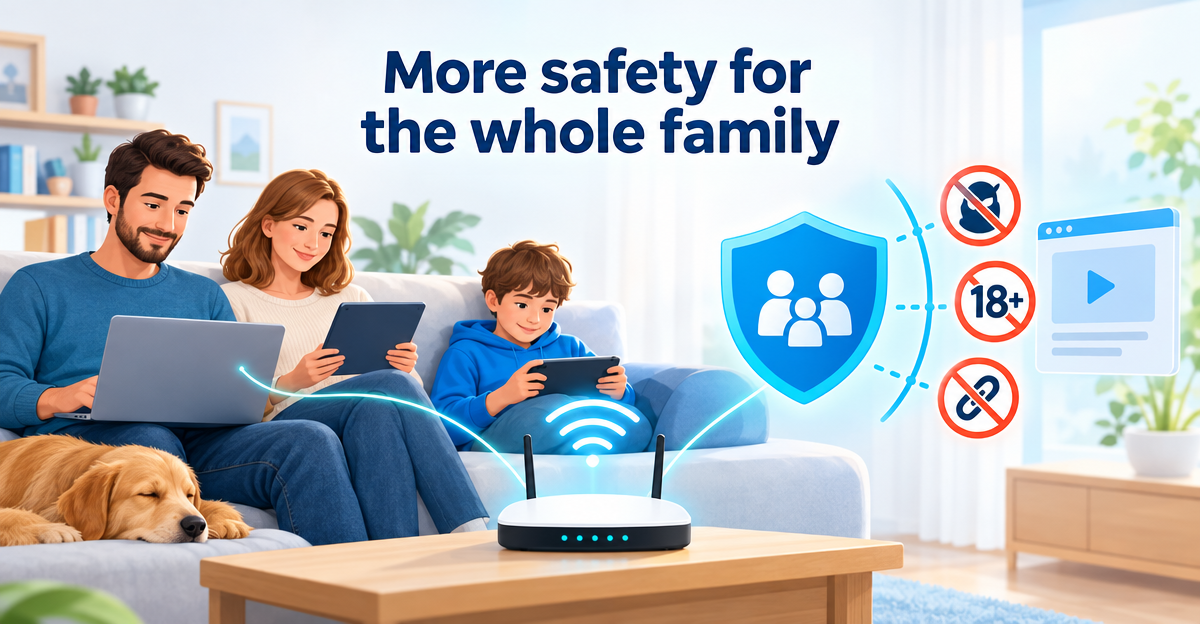
Cloudflare DNS for Families is a free filter for DNS, the “address book” of the internet: with 1.1.1.3 as your DNS server you block known malware and phishing sites as well as adult content. The 1.1.1.2 variant only blocks malware and phishing sites. You don’t need an account and you are done in about two minutes – but you don’t get ad and tracker filters, profiles per child or statistics with it.
What is the difference between 1.1.1.2 and 1.1.1.3?
Before a page loads, your device asks: which address belongs to this name? A DNS server (Domain Name System) answers this question. How this works in detail is explained in DNS filtering explained simply.
Cloudflare offers three addresses. The filtered variants go by the name Cloudflare for Families (also called “1.1.1.1 for Families”):
- 1.1.1.1: a normal DNS server without a filter.
- 1.1.1.2: blocks known malware and phishing sites.
- 1.1.1.3: also blocks adult content.
Each address has a second one as a backup: 1.0.0.2 and 1.0.0.3. Cloudflare also lists addresses for IPv6, the newer form of internet address. You can find them on Cloudflare’s help page.
So Cloudflare 1.1.1.3 is the family filter, and 1.1.1.2 is pure protection against malicious sites. Both are free and need no sign-up.
How to set up Cloudflare DNS for Families on your router
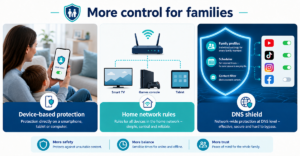
On the router, the filter works for all devices on your Wi-Fi. Including the smart TV and the console. You don’t have to install anything on the individual devices.
- Sign in to your router’s interface. The address is usually printed on the device or in the manual.
- Look for the settings for internet access or DNS servers. Depending on the model and firmware, the menu item has a slightly different name.
- Choose the option to use your own DNS servers.
- Enter 1.1.1.3 as the first and 1.0.0.3 as the second DNS server. If you only want to block malicious sites, use 1.1.1.2 and 1.0.0.2.
- Save the setting. Restart the router and the devices if necessary.
- Open a few normal websites to check that everything works.
On a FRITZ!Box it is no different: you can enter your own DNS servers there too. Exactly where depends on the firmware version. The manufacturer’s instructions show the current route. On some routers supplied by internet providers this setting is restricted.
ImportantOn the router, the filter only works in your home network. As soon as your phone is on mobile data or on someone else’s Wi-Fi, it no longer applies.
How do you use the filter directly on your phone?
You can also enter the addresses on individual devices. That makes sense if you cannot change the router or only want to protect one device.
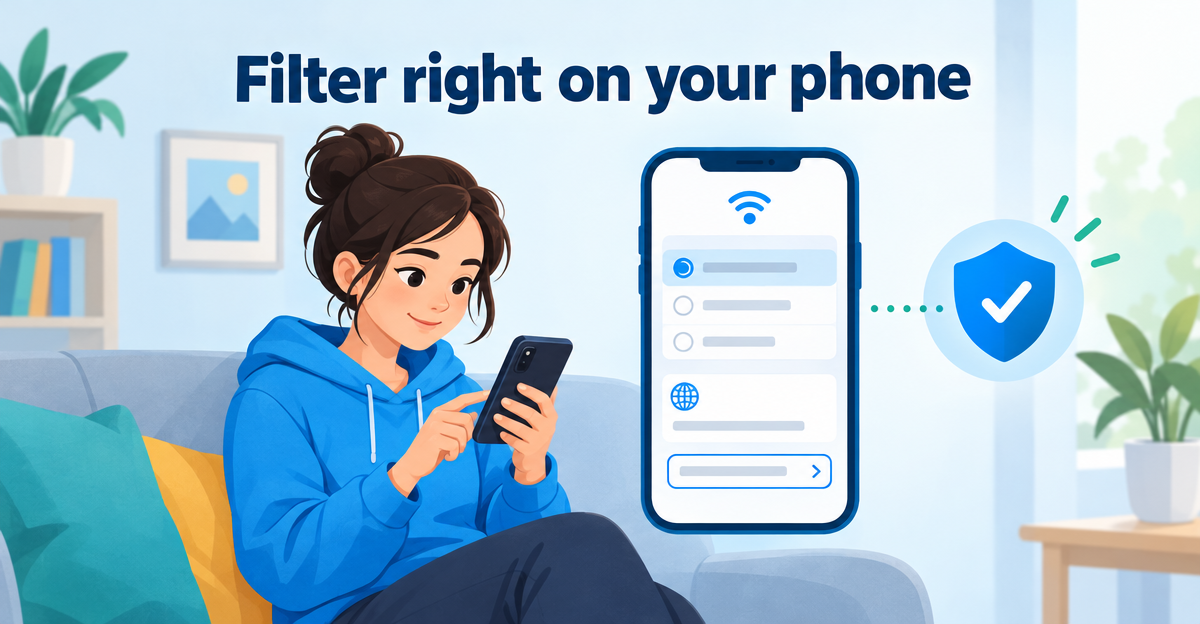
- iPhone and iPad: DNS servers can be entered manually in the details of a Wi-Fi network. But this only applies to that one Wi-Fi network, not on the go.
- Android: many versions have a “Private DNS” setting. It does not expect an IP address, but a hostname. For the family filter, Cloudflare gives family.cloudflare-dns.com. What the menu item is called on your device depends on the version and manufacturer.
TipWrite down the old settings before you change anything. Then you can always go back with two minutes of effort.
Where does the free filter end?
For what it does, the filter is solid. But that is all it does:
- No ads and no trackers: it blocks malicious sites and adult content, not ad networks.
- No rules of your own: you cannot allow a site or block one in addition.
- No profiles: all devices behind the router get the same rules. The parents’ phone just like the child’s tablet.
- No statistics: you cannot see what was blocked.
- No schedules: there is no internet break for the night.
On top of that: the filter works with lists of known domains. A brand-new site can slip through, and a harmless site is sometimes blocked by mistake.
The limitsA device, an app or a browser with its own DNS bypasses the filter. Anyone who knows how to change DNS settings can switch it off. More on this in Blocking DNS over HTTPS.
Also, a DNS filter does not replace the parental controls of devices and operating systems. How the two complement each other is shown in Parental control app or DNS filter.
To be honest: if you only want basic protection against malicious sites and adult content, 1.1.1.3 serves you well. Then you don’t need anything else.
What does XIBRO SHIELD add?
XIBRO SHIELD itself uses Cloudflare resolvers as one layer. On top of that come block lists against ads and trackers, a whitelist and blacklist for your own domains, and statistics in your account. FAMILIE and ZUHAUSE add profiles, app blocking and youth protection. Youth protection applies to your entire subscription – that is, to all your devices – permanently or on a schedule.
| Feature | 1.1.1.3 alone | With block lists and profiles |
|---|---|---|
| Malware and phishing sites | Yes, known domains | Yes, known domains |
| Adult content | Yes | Youth protection for the whole subscription (FAMILIE, ZUHAUSE) |
| Ads and trackers | No | Yes, via block lists |
| Your own exceptions and blocks | No | Whitelist and blacklist |
| Profiles per child | No | FAMILIE: up to 3, ZUHAUSE: unlimited |
| App blocking | No | YouTube, TikTok, Instagram, Facebook (FAMILIE, ZUHAUSE) |
| Statistics | No | Yes, in your account |
| Cost | Free, no account | Plan required, currently only with an invitation code |
A few things to know: XIBRO SHIELD is not a classic VPN, so it is not a connection that reroutes all your traffic. Only the DNS queries go through the tunnel. Your IP address and your country stay the same. DNS filtering runs on our servers in Germany; the upstream resolver is Cloudflare. There are DNS logs without your IP address, deleted automatically after 91 days.
A DNS filter cannot remove ads inside YouTube or in the Instagram feed. XIBRO SHIELD complements Screen Time and Family Link, but does not replace them. In FAMILIE and ZUHAUSE a compatible router protects the whole home network. All devices behind the router share the same filter rules. What FAMILIE offers in concrete terms is described in DNS filter for a family with 20 devices. Currently Early Access – plans only with an invitation code.
Frequently asked questions
1.1.1.2 or 1.1.1.3: which suits me?
Choose 1.1.1.2 if you only want protection against malware and phishing sites. Choose 1.1.1.3 if children are online too and adult content should be blocked as well. You can switch at any time by changing the address.
Does Cloudflare DNS work with the FRITZ!Box?
Yes, as a rule you can enter your own DNS servers there. The menu item differs depending on the model and firmware. It is best to check the manufacturer’s help. After that, the filter applies to all devices in the home network.
Does Cloudflare 1.1.1.3 cost anything or require an account?
No, the filter is free and can be used without signing up. You just enter the address. In return there are no statistics and no support for your settings.
Is 1.1.1.3 enough as child protection?
Often yes to start with, as long as the children don’t look for workarounds. The filter does not block individual apps and knows nothing about times. Screen Time on the iPhone or Family Link on Android therefore remain useful additions.
Conclusion
Cloudflare 1.1.1.3 is honest, free basic protection that is up and running in two minutes. If you want more – filtering ads and trackers, rules per child, app blocking or statistics – you can find out on xibro.de how XIBRO SHIELD handles it.