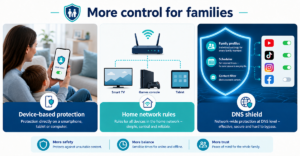
There are several ways to block Instagram for kids: with Instagram’s own settings, with Screen Time (German: Bildschirmzeit) on iPhone and iPad or Family Link on Android, with a block in the router, or with a DNS profile. No single way is completely gap-free. It is best to combine two of them and talk to your child about it.
Block Instagram for kids: which options are there?
First the good news: you do not have to be a tech expert. All of these options can be set up in a few minutes. The bad news: each one has a gap, and kids are inventive. That is no reason to panic, just a reason to take an honest look.
| Option | What it can do | The gap |
|---|---|---|
| Instagram settings | Separate settings for teens, parental supervision | Only limits, does not block completely |
| Screen Time (iPhone, iPad) | Limit the app, control the installation of new apps | Works on this one device only |
| Family Link (Android) | Block the app, limit time, approve installations | Works on this one device only |
| Router | Restrict devices on the home Wi-Fi | With mobile data, Instagram is back |
| DNS profile | Block Instagram per profile, also on the go | No time limits; getting around it remains possible |
What can Instagram do itself?
Instagram has its own settings for teens and a parental supervision feature (German: Elternaufsicht). There you can, for example, see and influence how your child uses the app. This is a good starting point, especially if your child already has an account. If you search for an Instagram teen account, these are exactly the protective settings for younger users.
ImportantThese features limit, but they do not block. Which options exist exactly keeps changing. So check Instagram’s help to see what currently applies.
How to block Instagram on iPhone and Android
The operating systems come with their own tools. They cost nothing and are often exactly right for a single device. What the menu items are called depends on the model and version. If something looks different on your device, look for the closest term.
Block Instagram on iPhone or iPad (Screen Time)
- In the settings, open Screen Time (Bildschirmzeit). With Family Sharing (Familienfreigabe), choose your child.
- Set your own passcode that your child does not know.
- Open App Limits (App-Limits) and add Instagram or the social networking category.
- Set a time limit. Depending on the iOS version, the menu item is called something slightly different.
- In Content & Privacy Restrictions (Inhalts- und Datenschutzbeschränkungen), check that new apps can only be installed with your approval.
Block Instagram on Android (Family Link)
- Install Family Link on your phone and connect your child’s account.
- Choose your child and open the settings for apps.
- Find Instagram in the app list.
- Set a time limit or block the app. What is offered depends on the version and the device.
- Allow new app installations only with your approval.
And in the router?
Many routers offer parental controls with filters and time limits for devices in the home network. On the Fritz!Box, the section is called something slightly different depending on the model and version. Whether a single app like Instagram can be blocked specifically depends on the device. Read the manufacturer’s manual for this.
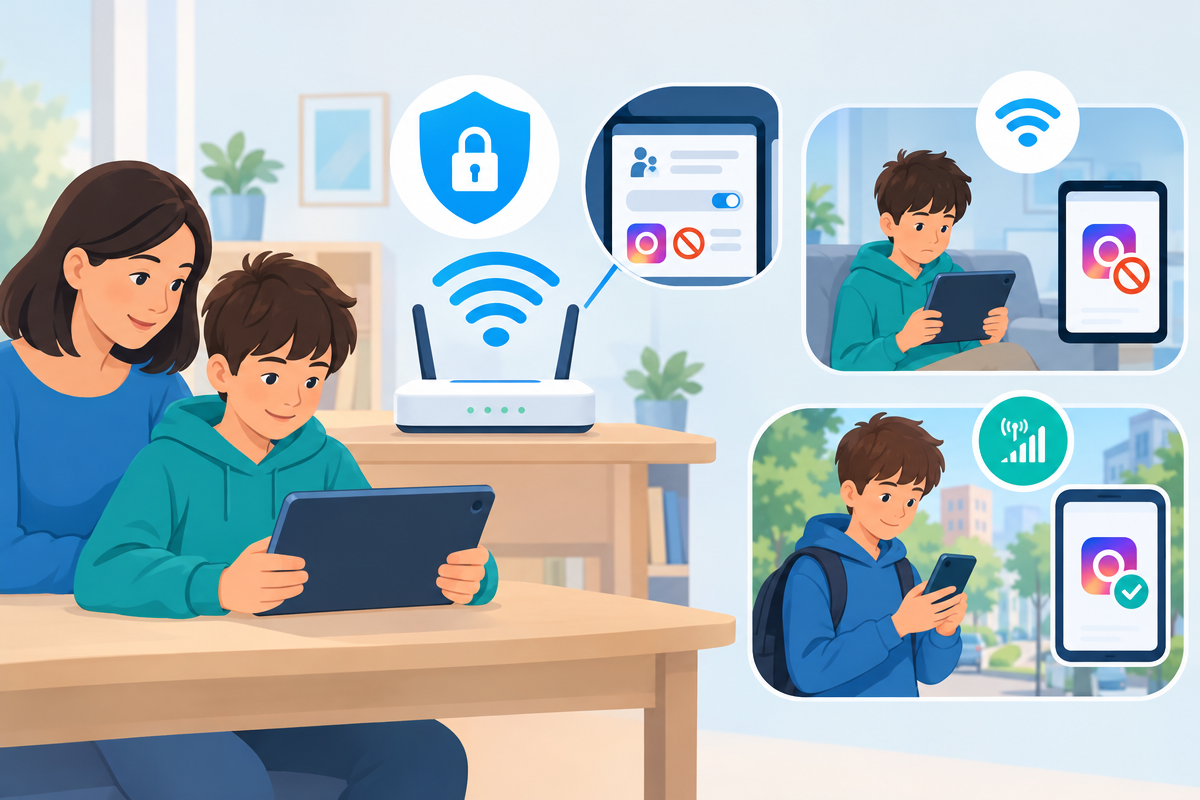
The limitsA block in the router only works on the home Wi-Fi. If your child switches to mobile data or is at a friend’s house, Instagram is back.
Where do these options stop?
These are the typical gaps:
- One device: Screen Time and Family Link only apply to the device on which you set them up. A friend’s tablet is not covered.
- Browser: If the app is blocked, Instagram may still be opened through the website in the browser. Check this yourself briefly after setting up.
- Only at home: The router only protects the home network.
- Passcodes and tricks: A guessed passcode or another device is often enough.
The gapNo technology replaces agreements. Those who know why a rule exists look for loopholes less often.
What can a DNS profile do about Instagram?
DNS is the phone book of the internet: your device asks there where a site lives. A DNS filter can simply not resolve certain addresses. XIBRO SHIELD works this way. It is not a classic VPN. Only the DNS requests run through the tunnel (the connection via WireGuard, a connection technology). Your IP address and your connection country stay the same.
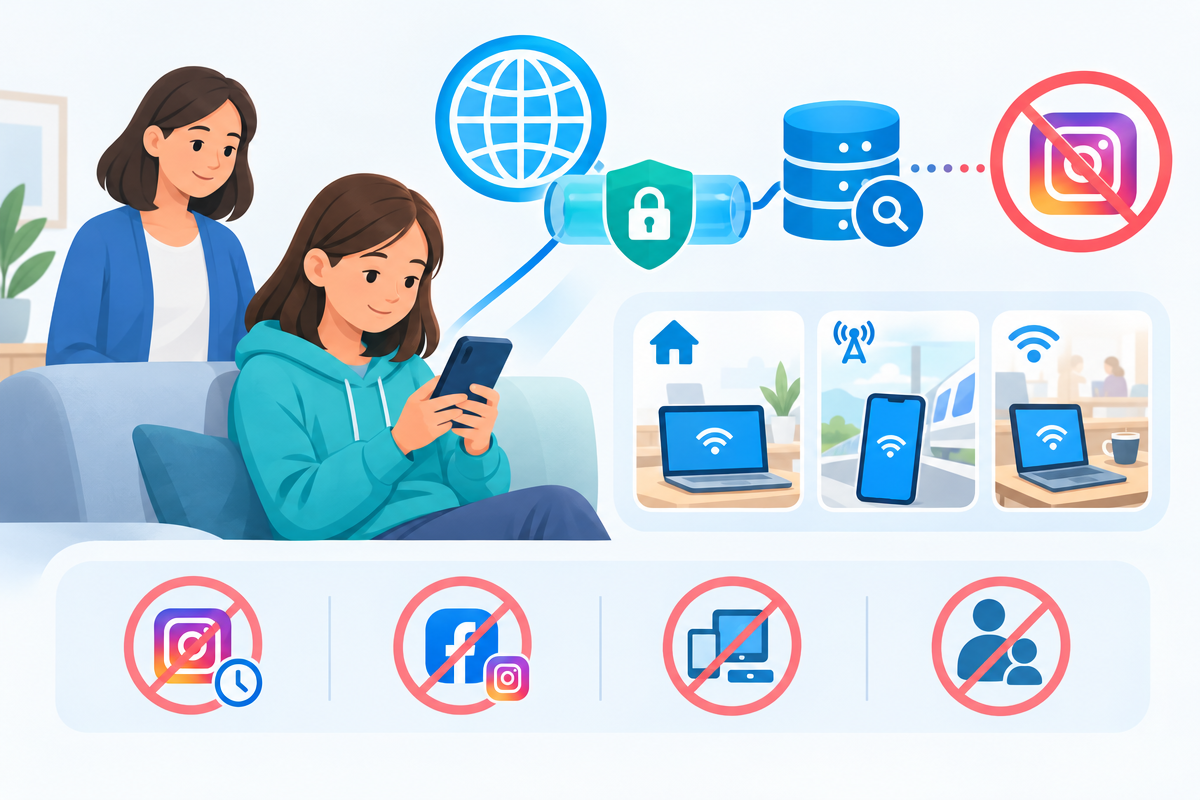
The FAMILIE and ZUHAUSE plans include profiles with their own rules. Each profile has a switch for app blocks, including Instagram. A phone with its own WireGuard configuration is protected on any network: at home, on mobile data or on someone else’s Wi-Fi, as long as the connection is active. If your child switches it off, the filter no longer works there.
What it cannot do:
- A block closes Instagram completely. Limiting it for a certain time is not possible. A profile’s schedule pauses the entire internet of its devices, not individual apps.
- A Facebook block also affects Instagram, because both use the same network for images and videos. With Facebook blocked, no photos and videos load in Instagram.
- All devices behind the router share the same filter rules. Only a device with its own configuration gets its own profile.
- XIBRO SHIELD complements Screen Time and Family Link, but does not replace them. It does not show screen time and does not forbid installations.
TipIn the settings, turn on “Prevent DNS bypass” (German: DNS-Umgehung verhindern). The switch is off by default. It blocks known encrypted DNS services and iCloud Private Relay, which makes bypassing harder. It cannot be ruled out completely. You can find more about the technology behind it in the article Blocking DNS over HTTPS.
For an overview of when an app and when a DNS filter fits better, see the comparison Child protection app or DNS filter. The principle also applies to other apps, for example in Blocking YouTube for kids.
Why does the conversation stay important?
A block solves only part of the problem. Talking helps more: Why do you not want Instagram (yet)? When will it be allowed later? What happens if something unpleasant happens there? If your child tells you instead of hiding something, a lot has been gained.
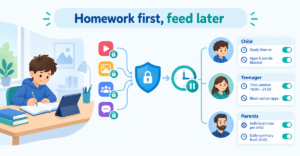
A fixed routine helps as well, for example phone away during homework. You can find ideas for this in Blocking social media during homework. For serious problems such as bullying or threats, school and counselling services are good places to turn. In the case of criminal offences, the police can help.
Frequently asked questions
How can I block Instagram on the iPhone?
Use Screen Time (Bildschirmzeit): set a passcode, choose App Limits (App-Limits) and enter Instagram or the social networking category. A very short limit works almost like a block. In addition, you should make new app installations dependent on your approval.
How can I block Instagram on Android?
With Family Link, you choose your child, open the app settings and look for Instagram. There you can, depending on the version, set a time limit or block the app. The installation of new apps can also be made subject to approval.
Can I block Instagram in the router?
That depends on the router. Many offer parental controls with filters and schedules, but not every one blocks individual apps specifically. A router block only works on the home Wi-Fi; with mobile data, Instagram can be reached again.
What is an Instagram teen account?
For teens, Instagram offers separate account settings and parental supervision. They limit usage but do not block. Exactly which features exist changes, so check directly with Instagram.
Conclusion
For a single device, Screen Time or Family Link is often completely enough. If you want to block Instagram on several devices and also on the go, a DNS profile can be a useful addition. XIBRO SHIELD is currently in the Early Access phase: plans only with an invitation code. With the free trial you can try the basic protection on one device, but without profiles. You can find everything else on xibro.de.