To remove ads from your phone, first find the cause. Usually it is a recently installed app, an allowed website notification or advertising in free apps and games. You stop the first two yourself in the settings. A DNS filter can help against a lot of advertising in apps.
Removing ads from your phone: where do they come from?
If you keep getting ads on your phone, one of three causes is usually behind it. The table shows how to recognise them and what helps.
| Cause | How you recognise it | What helps |
|---|---|---|
| Aggressive app | Full-screen ads or ads on the home screen, even with no app open | Find the app and uninstall it |
| Website notification | Messages in the notification bar, even when the browser is closed | Revoke the permission in the browser |
| Ads in apps and games | Banners and videos in the middle of an app | Paid version, another app or DNS filter |
Ads on the home screen or full screen: which app is to blame?
If ads appear outside of apps, for example when you unlock the phone, on the home screen or full screen over other apps, an app is almost always the trigger. Usually one you installed only recently. Often it is a free flashlight, a small game or a utility.
Here is how to proceed:
- Work out the timing: When did the ads start? Which app came onto the phone shortly before?
- Open the app list: Go through your app list in the settings. The menu item is called something slightly different depending on the model. Look for apps you do not know or do not need.
- Check permissions (Android): On many Android phones an app may display itself over other apps. Depending on the manufacturer, you find the right menu item under a different name. Revoke the permission for apps that do not need it.
- Uninstall the suspicious app: Then restart the phone and watch it for a few hours.
- Not done yet? Take on the next most recent app. Only one at a time, that way you can spot the culprit.
WarningNever install a “cleaner app” or a “virus scanner” because an ad recommends it. Such ads like to claim that your phone is “infected”. Often this very app is the real problem.
Pop-ups and notifications from websites: how to revoke the permission
Sometimes a website asks: “Allow notifications?” One tap on “Allow” is enough, and the site may send you messages at any time, including ads. That then feels like pop-up ads on your phone, even though no app is to blame.
- Open your browser’s settings.
- Look for the section for website settings or notifications. The menu item is called something slightly different depending on the browser and model.
- Look through the list of sites that may send you messages.
- Revoke the permission for every site you do not know or do not want.
- Also check in the phone settings, in the notifications section, which apps may send you messages.
For ordinary pop-up windows in the browser, there is usually a pop-up blocker in the browser settings. Turn it on if it is off.
Good to knowA DNS filter does not remove website notifications. You revoke the permission in the browser or in the phone settings.
Why is there so much advertising in apps and games?
Many free apps are financed by ads. To do so, they load advertising from third-party servers and often report what you do along the way. That is annoying, but usually not a sign of malware. You have several options:

- Paid version: Many apps offer an ad-free version for a fee. If you use the app every day, this is often the simplest solution.
- Another app: There are alternatives for almost every task. See which one gets by with less advertising.
- Privacy settings: You can limit personalised advertising. That does not reduce the amount, but the ads match you less precisely. Depending on the system, the item is called something different.
- DNS filter: It blocks many known advertising and tracking addresses in all apps at once. Why apps contact such addresses in the first place is explained in the article Blocking trackers in apps.
Checklist: work through it in this order
- Check the apps from the last few weeks and uninstall suspicious ones.
- Check the apps that have permission to display over other apps.
- Revoke notifications from unknown websites in the browser.
- Turn on the pop-up blocker in the browser.
- For ads in individual apps: consider a paid version or an alternative.
- Do not install a “cleaner app” from an ad.
Where the phone settings stop
With built-in tools you can get a long way against full-screen ads and website messages. But the settings can do little against the advertising inside apps and games. It is delivered by the app itself or its ad network, and you cannot simply switch it off.
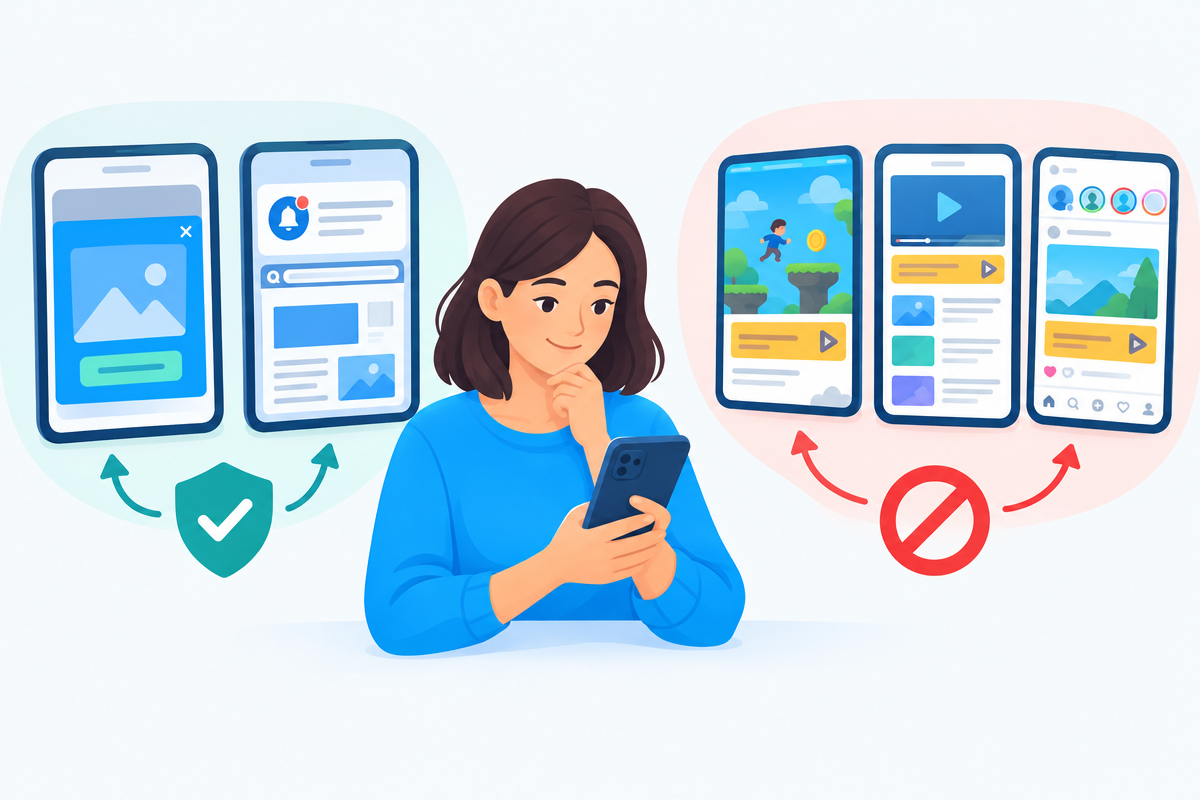
The limitsA DNS filter cannot remove advertising inside YouTube or in the Instagram feed. It comes from the same servers as the content itself. The only thing that helps there is the paid offer of the respective service.
Does a DNS filter like XIBRO SHIELD help against ads in apps?
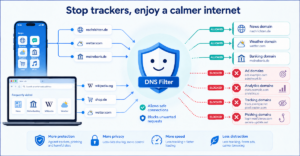
DNS is the phone book of the internet. Before an app loads an ad, your phone asks there for the address of the ad server. For known advertising and tracking addresses, a DNS filter does not answer with a usable address. The ad is then not loaded at all.
XIBRO SHIELD does this through the WireGuard app on your phone. It is not a classic VPN: your IP address and your country stay the same. Only the DNS requests go through the tunnel, everything else goes directly as usual. DNS filtering runs on our servers in Germany, with “Server in Germany, DNS logs without your IP address and with automatic deletion after 91 days”.
What the filter does:
- It blocks many advertising and tracking domains in all apps and in the browser, at home and on the go, as long as the WireGuard connection is switched on.
- When you open a link, it blocks known phishing domains. The message itself still arrives.
What it does not do:
- Not every ad disappears. YouTube ads stay, as do ads in the Instagram or Facebook feed.
- Website notifications remain. You revoke those in the browser.
- SMS, WhatsApp and emails are not checked.
- If you switch the WireGuard connection off, nothing is filtered on this phone any more.
You can try it without risk: test for free for 7 days – without a customer account and without payment details. One device, full protection – after 7 days the test ends by itself. Afterwards you switch off the “XIBRO-Test” connection in WireGuard or delete it, otherwise the phone will no longer open any pages. How to do that is in the step-by-step guide to the trial.
Frequently asked questions
Why do I suddenly have ads on my phone?
Usually it is an app you installed recently, or a website you allowed notifications for. Think back to what happened shortly before they first appeared. That narrows down the cause quickly.
How do I get rid of pop-up ads on my phone?
Turn on the pop-up blocker in the browser and revoke the notification permission for unknown websites. If ads appear outside the browser, find the suspicious app and uninstall it. The menu names differ depending on the model.
Can I block ads on my phone completely?
You can block ads on your phone, but not completely. A DNS filter keeps many advertising and tracking addresses away. Ads that come from the same server as the content, for example in YouTube or in the Instagram feed, stay visible.
Are ads on my phone a sign of a virus?
Not necessarily. Usually it is an intrusive app or an allowed website notification. If you entered data or paid after a suspicious ad, talk to your bank. Tips for everyday life with risky links are in One link too many.
Conclusion
First find the cause, then act specifically: delete the app, revoke notifications, go for the paid version for ads in apps, or use a DNS filter. If you would like to try the latter in peace, you will find the free trial on xibro.de.