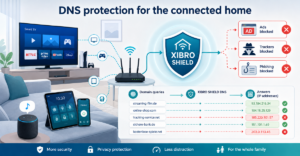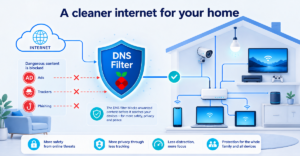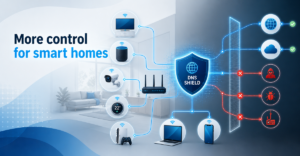
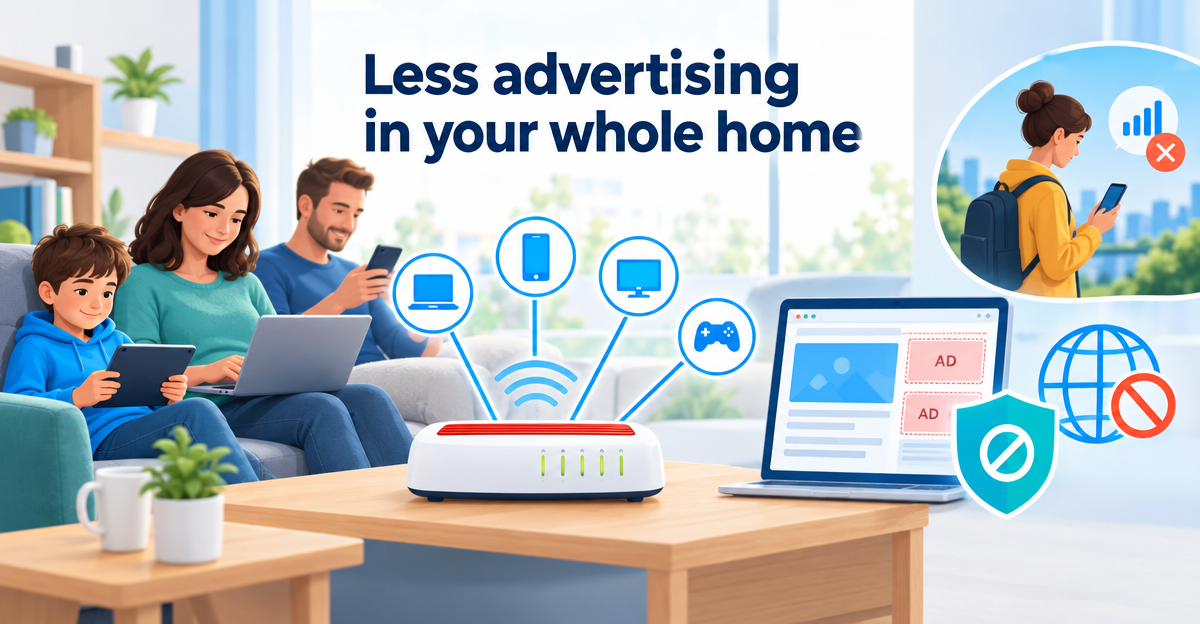
The Fritz!Box DNS filter is an ad blocker built right into the router: with FRITZ!OS 8.50, AVM brings a DNS filter with blocklists to the box. It works for all devices in your home network without you installing anything on the device. It ends at your front door: on the mobile network it does not protect you, and ads that come from the same servers as the content stay.
What can the Fritz!Box DNS filter do?
Every website has a name, for example beispiel.de. Your device needs an address for it. To get one, it asks a DNS service, a kind of phone book of the internet. DNS filtering explained simply describes exactly how this works.
A DNS filter listens in on this question. If the domain is on a blocklist, the device gets no address. The ad or tracker then does not load. A DNS filter in the router works for all devices in your home network, because most devices ask the Fritz!Box by default. Phone, laptop, smart TV and console are all covered at once. You do not have to set anything up on any device.
Good to knowA DNS filter changes neither your IP address nor your location. It only blocks domains that are on the lists.
To be fair: for many households the built-in filter is a good start. It is in the box you already have. If you want less advertising and tracking at home, it often takes you quite far.
How do you set up the Fritz!Box DNS filter?
The menu names depend on the model and the FRITZ!OS version. That is why we describe the steps without fixed menu paths.
- Check the version: Open your box’s interface in the browser, usually via fritz.box, and log in. The overview shows which FRITZ!OS version is running.
- Check for updates: If your version is older than 8.50, look in the updates section to see whether a newer version is available for your model. Not every model gets every version.
- Find the filter function: Look in the interface for the settings for filters or DNS (German: Filter, DNS). The menu item has a slightly different name depending on the model. If you cannot find it, the function is probably not available for your model or version.
- Turn on the blocklists: Activate the lists offered against ads and trackers. Start with the default settings. More lists do not automatically mean more protection, but more broken pages.
- Save and test: Open a news site with a lot of ads and reload it. Often the ad spaces stay empty or get smaller. If needed, restart your phone or laptop so that old entries disappear.
- Check exceptions: If a page no longer loads properly, see whether the interface allows exceptions. Whether and how this works is explained in the box itself or in AVM’s help.
TipChange only one thing at a time. That way you know which setting broke a page.
Where does the Fritz!Box filter end?
A filter in the router is handy, but it has limits. This applies to every router filter, not just AVM’s.
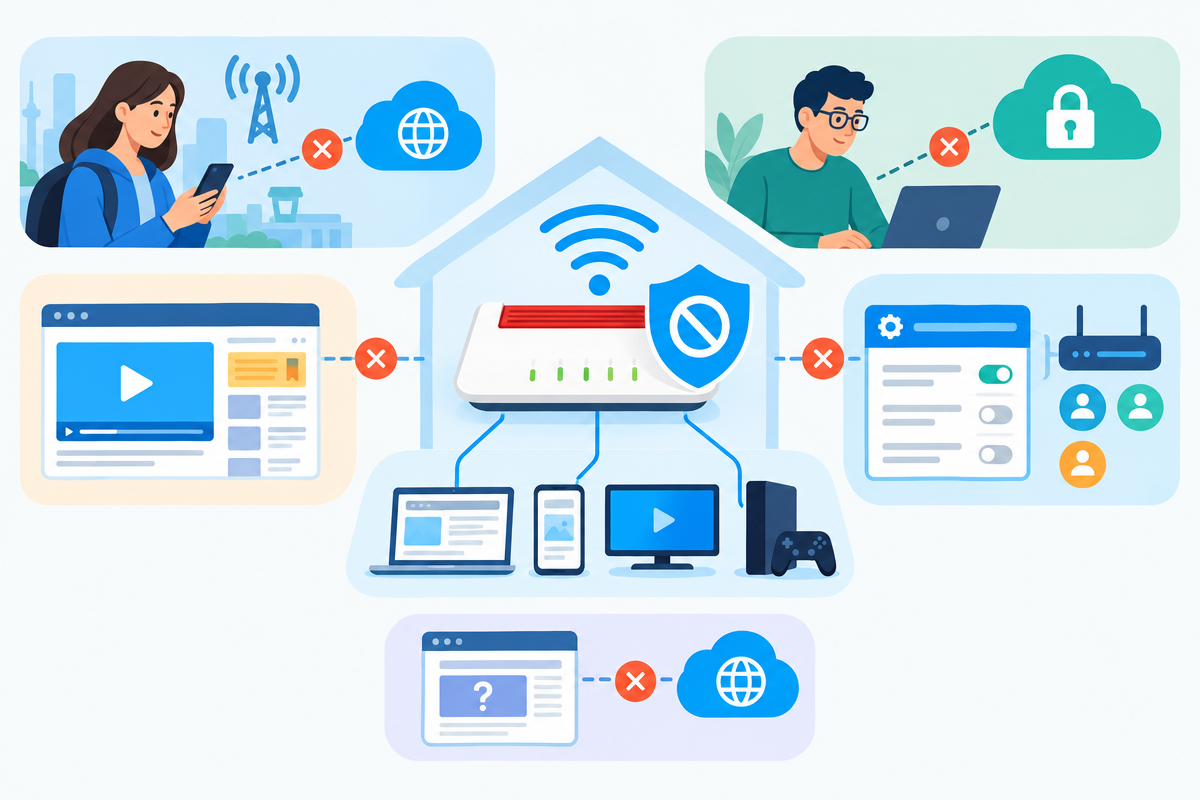
- On the go: On the mobile network or in someone else’s Wi-Fi, your phone does not ask your box. The filter is then not active.
- Own encrypted DNS: Some browsers and devices use their own encrypted DNS service, DoH for short. They then do not ask the router. Features such as iCloud Private Relay can also bypass the filter. More on this in Blocking DNS over HTTPS.
- Ads from the same server: A DNS filter cannot remove ads inside YouTube or in the Instagram feed. They come from the same domains as the content. If you block the domain, you block the video too.
- Availability: Whether your model gets the filter and which settings it offers depends on the model and version. Check this in the interface of your own box.
- Fine-grained rules: Whether you can filter different devices or family members differently also depends on the model and version.
The limitsNo DNS filter is a guarantee. A new site that is not yet on any list can slip through.
Is the built-in filter enough for you?
Often yes. It is enough if your devices are mostly online at home and everyone in the household can have the same rules. Then the box is a good ad blocker for the whole home network.
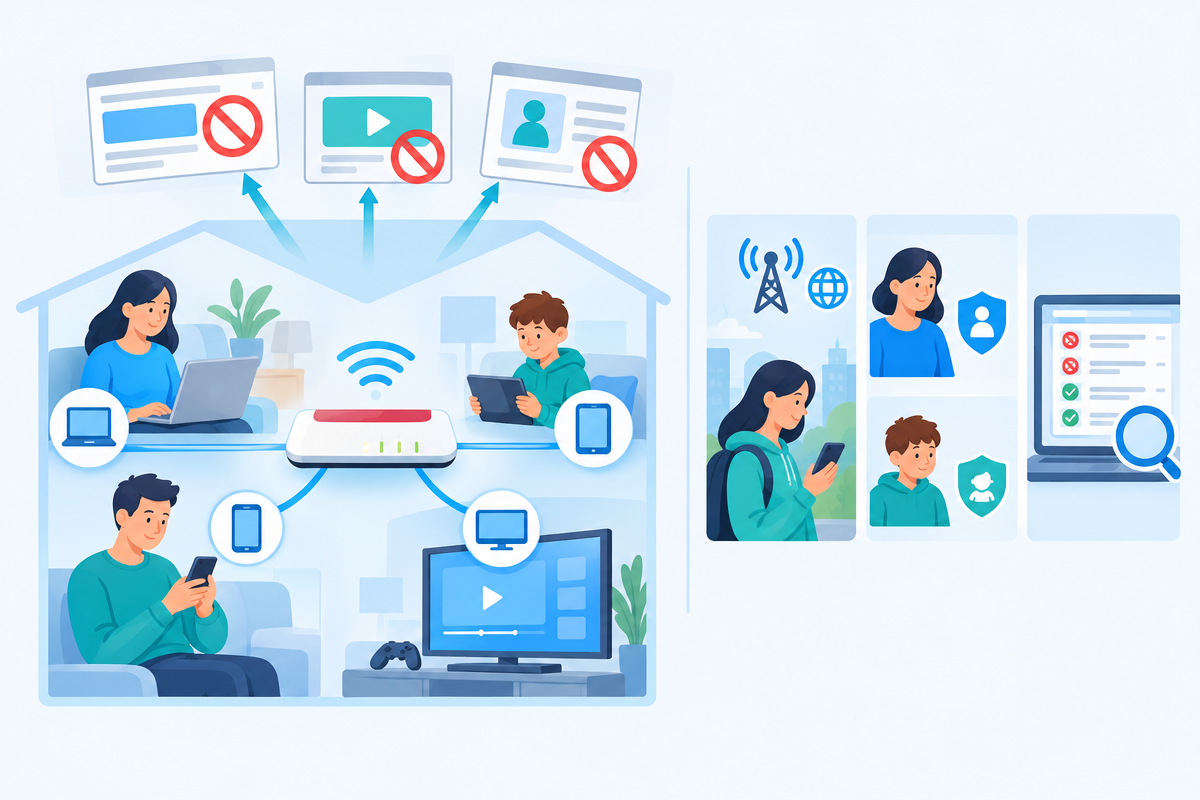
It gets harder in three cases. You also want to filter on the go. Children and parents need different rules. Or you want to see what was actually filtered. Then an addition is worthwhile.
What does XIBRO SHIELD add?
XIBRO SHIELD is a DNS filter service and not a classic VPN. A classic VPN redirects all of your traffic. With us, only the DNS requests go through the WireGuard tunnel. Everything else goes directly, as usual. Your IP address and your country do not change. DNS filtering runs on our servers in Germany. The upstream resolver is provided by Cloudflare. The DNS logs do not contain your IP address and are deleted automatically after 91 days.
- On the go: Devices with their own WireGuard configuration are protected on any network as long as the connection is switched on. If you switch it off, nothing is filtered any more.
- Profiles: FAMILIE offers up to 3 profiles, ZUHAUSE profiles without a limit, each with its own rules.
- Statistics: In the customer area you can see how many requests were filtered and which domains were blocked.
- Prevent DNS bypass: The switch is off by default. When switched on, it blocks DoH from known providers and iCloud Private Relay. A DoH service that is addressed directly by IP address is not detected.
You can use the Fritz!Box as a HOME ROUTER for this. In FAMILIE and ZUHAUSE, the customer area contains a WireGuard configuration for your router. You import it into the Fritz!Box, and the filter applies to the whole home network. This has been tested with the Fritz!Box. All devices behind the router share the same filter rules, including the smart TV and console. Why they ask for domains at all is explained here. Devices behind the router do not count towards the device limit: FAMILIE offers 20 devices + router, ZUHAUSE 30 devices + router.
NoteXIBRO SHIELD is currently still in the Early Access phase – plans can currently only be activated with an invitation code. Regular sales start later.
To try it out, there is a trial: test free for 7 days – without a customer account and without payment details. It runs on one device, without profiles and without a router, and ends by itself after 7 days. Here is how it works, step by step.
Frequently asked questions
Can I block ads with the Fritz!Box?
Yes, if your model and your FRITZ!OS version offer the DNS filter. It blocks domains that are on the blocklists. Ads that come from the same servers as the content, for example in YouTube, stay anyway.
Is the Fritz!Box DNS filter an ad blocker like the one in the browser?
Not quite. An ad blocker in the browser can hide individual elements on a page. A DNS filter only blocks whole domains. In return, it works for all devices and also in apps where you cannot install a browser add-on.
Can I use my own filter lists?
Whether the box allows your own filter lists or only offers preset lists depends on the model and version. Check the interface or AVM’s help. With XIBRO SHIELD you cannot add your own blocklists. You enter your own domains via Whitelist and Blacklist.
Does the filter also work on the go?
The router filter only works for devices that are currently online via your box. On the go you need a solution on the device itself. With XIBRO SHIELD that is your own WireGuard configuration, as long as the connection is switched on.
Conclusion: a good start with clear limits
The Fritz!Box DNS filter is a sensible first step. It is simply there, works for the whole home network and needs no extra installation. You now know its limits: on the go, your own encrypted DNS and ads from the same server. If that is enough for you, you are done. If not, you can take a look at xibro.de at your leisure to see what XIBRO SHIELD adds.