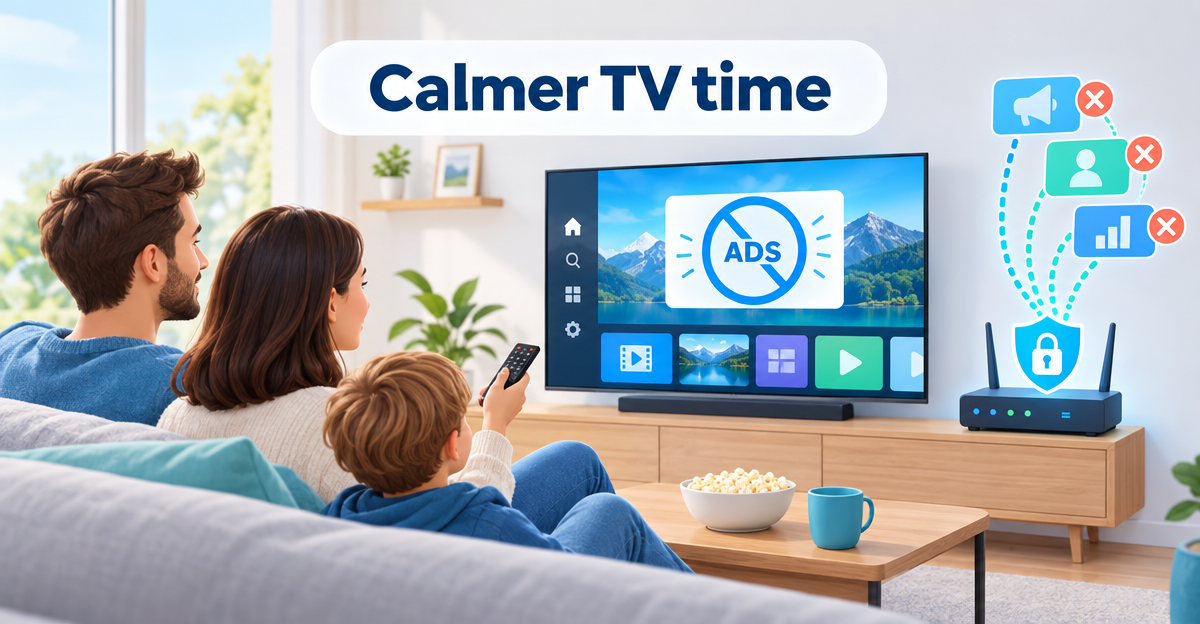
When it comes to turning off ads on a Samsung TV, the honest answer is: the TV will not become completely ad-free, but it will get noticeably quieter. In the settings you switch off personalised ads and the analysis of your viewing habits. A DNS filter in your home network also blocks many of the manufacturers’ ad and tracking addresses. On LG it works much the same way.
Why does my smart TV show ads at all?
A smart TV is a small computer with a screen. Manufacturers earn money not only from the device, but also from what runs on it. That is why you come across ads in three places:
- Home screen: tiles with series, films or apps that use the space for advertising.
- Free channels: services such as Samsung TV Plus or similar services on LG are funded by ad breaks.
- Data analysis: the device can record what you watch and use it to target ads.
This is not a fault with your device. It is part of the business model. But you can limit quite a lot of it.
How to switch off ads and analysis in the settings
The exact menu items differ depending on the model, year and software version. The names often change. The following steps therefore only point you in the right direction. If an item is called something different on your TV, look for similar terms such as “Privacy”, “Advertising” or “Terms of use”.
- Open the settings: use the remote control to go to the main settings menu. There is usually a section such as “General”, “Support” or “Privacy”.
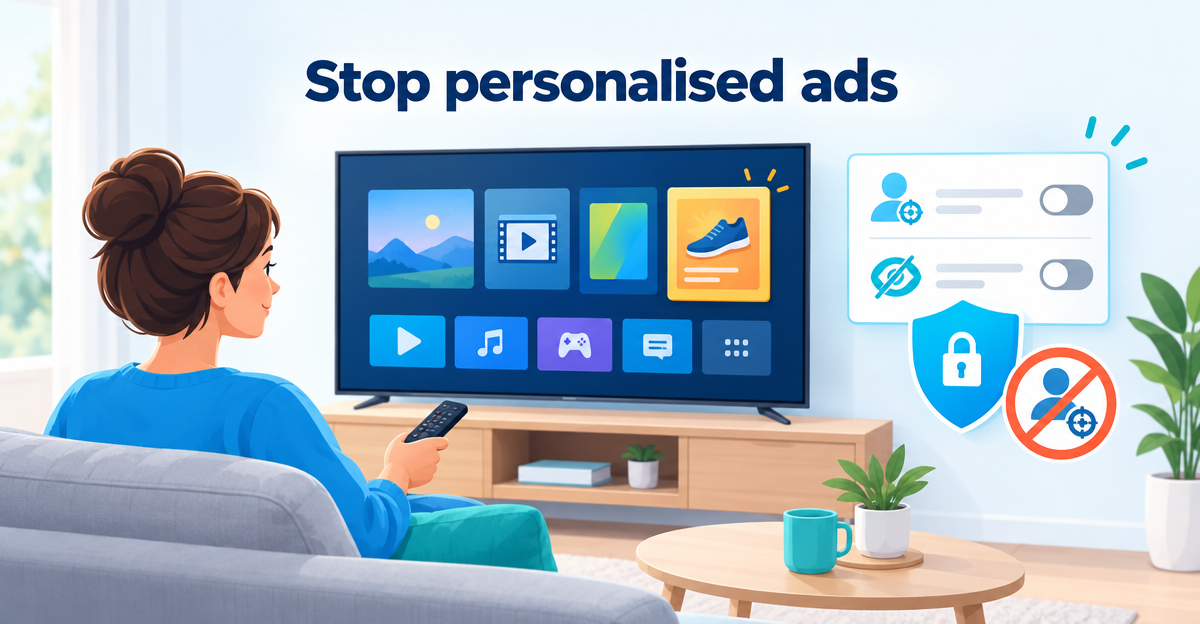
- Switch off personalised ads: look for an item about interest-based or personalised advertising. Switch it off.
- Switch off the analysis of your viewing habits: behind this is automatic content recognition, ACR for short. The device recognises what is currently on the screen. Depending on the model, the item has a slightly different name, for example analysis of viewing habits or viewer information. Switch it off.
- Check your consents: during the first setup you probably confirmed several terms of use with “Agree”. Look in the privacy or legal notices to see which consents are active, and withdraw the ones you don’t want.
- Restart the TV: some changes only take effect after a restart.
TipAfter a major software update it is worth taking a second look. Sometimes new consents appear that were not there before.
Samsung: what you can change
On Samsung devices you usually find the privacy and advertising settings in the “General” or “Support” section. There you can switch off interest-based advertising and the analysis of your viewing habits.
Samsung TV Plus is a separate service with free channels. The ads between programmes are part of the deal there. If you don’t use the service, simply ignore it. Whether the tile on the home screen can be hidden depends on the model.
LG: turning off ads on an LG TV
LG TVs usually also have a section for privacy and terms of use. There you can switch off interest-based advertising and the analysis of your viewing habits. Depending on the model and software, it may go by a different name. If you agreed to a lot during setup, open the list of consents and withdraw them one by one.
LG also shows recommendations and ad tiles on the home screen. Some can be hidden, others cannot. That depends on the model.
The limits of the settings
The limitsThe settings mainly switch off the personalised version. That does not mean the ads disappear. Ad tiles on the home screen and ad breaks in free channels can stay – just no longer tailored to you. Whether a manufacturer still contacts addresses in the background is something the menu does not show you.
What does a DNS filter do against TV ads?
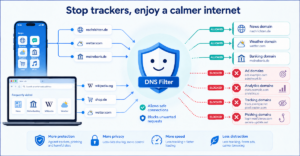
DNS is the phone book of the internet. Your TV looks things up there when it wants to reach an address, for example an ad server. For known ad and tracking addresses, a DNS filter simply answers “doesn’t exist”. The TV then gets no answer and the request goes nowhere. How this works in detail is explained in the article DNS filtering explained simply.
This works well for smart TVs, because they often query addresses of manufacturers, ad networks and analytics services in the background. You can read more about this in Why devices without a browser also ask for domains.
| Type of ad | Settings | DNS filter |
|---|---|---|
| Personalised ads | Can be switched off | Blocks many ad addresses |
| Analysis of viewing habits | Can be switched off | Blocks many tracking addresses |
| Ad tiles on the home screen | Only partly | Only if they come from separate addresses |
| Ads in free channels | Hardly | Usually not |
| Ads in YouTube and streaming apps | No | No |
What remains even with a DNS filter
The limitsIf an ad tile comes from the same servers as the content, the filter cannot separate the two. If it blocked the address, the content would disappear too. The same applies to ads inside YouTube or other streaming apps. A DNS filter cannot remove ads inside YouTube, because they come with the video. The ad breaks in free channels are also usually delivered directly with the programme.

So an honest expectation is: fewer ads and less data leaving your home, but not an “ad-free” TV.
How XIBRO SHIELD helps with your TV
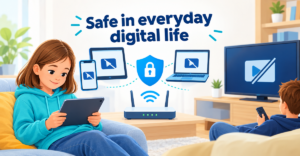
Your TV does not get its own WireGuard connection, because there is no suitable app for smart TVs. With XIBRO SHIELD you therefore protect it via the router. Only the DNS queries go through the tunnel; all other traffic goes straight to the internet as usual. Your IP address and your location do not change. DNS filtering runs on our servers in Germany.
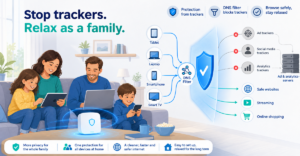
This works with FAMILIE and ZUHAUSE. SOLO has no router function. In your account you will find a WireGuard configuration for your router. You import it into a router that supports WireGuard, such as a FRITZ!Box. We have tested this with the FRITZ!Box. After that, XIBRO SHIELD filters ad, tracking and known phishing addresses for all devices in your home network. Devices behind the router do not count towards the device limit.
ImportantAll devices behind the router share the same filter rules. There is no separate set of profiles for the TV. In your account the whole home network appears as one device, so you cannot see what the TV queries on its own. Also, the protection only applies while the TV is in your home network.
There is one more restriction: a TV with a hard-coded DNS server or its own encrypted DNS can partly bypass the filter. The “No DNS bypass” protection in your account helps against this, but it is switched off by default. We do not promise protection without gaps.
If you would like to see how a DNS filter works in everyday life first, you can try XIBRO SHIELD free for 7 days. The trial runs on one device and without a router, so it does not cover your TV.
What if a feature stops loading afterwards?
Sometimes a filter blocks an address that an app or feature needs. Then, for example, a tile stays empty or a service does not load. Put the affected domain on the whitelist, the list of allowed addresses. Here is how to do it step by step: Setting up a DNS whitelist and blacklist. Only ever change one address at a time and test afterwards.
Frequently asked questions
Can I switch off ads on an LG TV completely?
Usually not completely. You can switch off personalised ads and the analysis of your viewing habits and withdraw consents. Ad tiles on the home screen and ads in apps may remain. What the items are called depends on the model.
Why does my smart TV show ads on the home screen?
The home screen is valuable space for manufacturers. Recommendations and paid placements appear there. Some can be adjusted or hidden in the settings, others cannot. A DNS filter only helps if the ads come from separate ad addresses.
Can ads on Samsung TV Plus be switched off?
Samsung TV Plus is funded by advertising. We are not aware of a switch that hides it. If the ad breaks bother you, it is best not to use the service or to switch to broadcasters’ catch-up services and other apps.
Does a DNS filter remove YouTube ads on the TV?
No. YouTube ads come from the same servers as the video. A DNS filter therefore cannot remove them. It does, however, block many tracking and ad addresses in the background.
Conclusion
The settings are the first and most important step. A DNS filter complements them by blocking many ad and tracking addresses across your whole home network. There is no guarantee of an ad-free TV. If you want to filter your home network simply and without technical fiddling, take a look at xibro.de. There you can find out how XIBRO SHIELD works.